 Addy
Addy  Addly
Addly  Goalify
  Monet
Monet  Reviso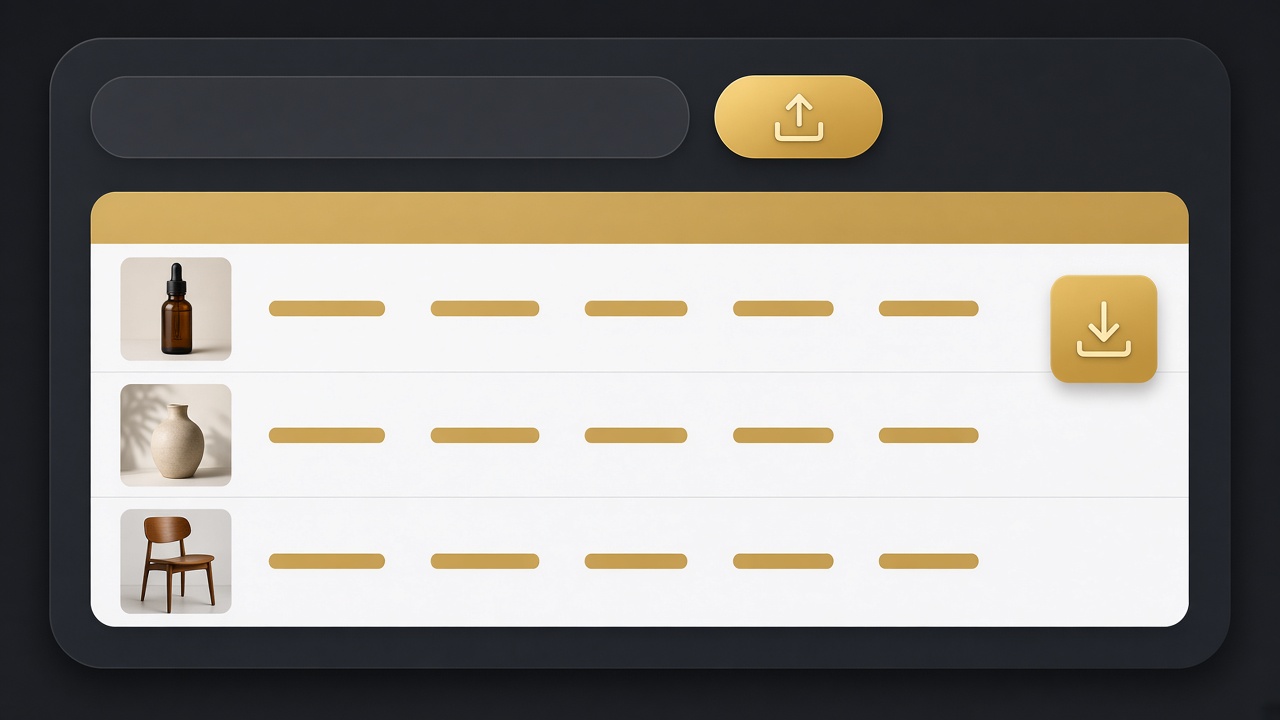
Key takeaways
- A product exporter reads the public catalogue. No login, no app on their theme, and the file is built in your browser.
- You get title, handle, vendor, type, tags, variant, SKU, price, compare-at, availability and image URL — one row per variant.
- Sort by price and filter rows with a compare-at. Those are often the SKUs they advertise.
- The file is for research. Copying their photos and descriptions is not the job. Shopify’s own importer also wants its own column map.
- Password-protected stores have no public products, so there is nothing to export.
Pricing a competitor one product page at a time is slow. You click, you scribble a number, you forget the variant that was $4 more.
A Shopify product exporter pulls the public catalogue into a spreadsheet: title, price, compare-at price (the “was” price), variants, SKUs, vendor, tags and image links. You sort, you count how many products sit in each band, and you see how deep the discounting goes.
The export is only what a shopper could see. The file is built in your browser and is not stored on the tool. No app is installed on their theme or yours.
What one row means
The file is one row per variant, not one row per product. A T-shirt with six sizes is six rows. When you want a product count, count unique handles (the URL name), not rows.
Typical columns:
- Title and handle — what they call it, and the
/products/handleslug. - Vendor and type — brand line and the bucket they put it in.
- Tags — merchandising labels. Useful, noisy.
- Variant title and SKU — size, colour, and their stock code if they published one.
- Price and compare-at — what they charge, and the number they strike through.
- Availability — in stock or still listed while sold out.
- Image URL — for your notes. Not a license to reuse the photo.
A large catalogue takes longer because every variant is included. Open the CSV in Excel, Numbers or Google Sheets.
What to look for first
Price clusters. Sort by price. You will see bands: under $20, $20–$40, $40–$80. The band you can advertise is the one that matters. If everything they sell sits above your customer’s comfort, you are not in the same shop.
Compare-at gaps. Filter to rows where compare-at is higher than price. Those SKUs are “on sale” in the catalogue. They are often the ones in ads. Confirm with a Shopify ads spy.
Variant depth. Six sizes and four colours is a different business to one-size pouches. Depth is inventory and photos. Shallow catalogues are easier to test; deep ones look more “real” on the PDP.
Out of stock they still list. Availability lets you see what they keep on the site when it is gone. That can be a signal they restock, or a leftover.
Collection-only exports. Paste a collection URL if you only care about that range. Pasting the homepage starts from the public catalogue the store exposes there.
Use the file next to ads and a calculator
The export without a question is a dump. Pair it.
Ad → price. Spy their Meta or TikTok ads, note the product, find that title in the sheet, write the price they actually charge. Ads lie with “from.” Spreadsheets do not.
Price → leftover. Before you match their number, subtract your product cost, shipping and fees. If their $28 would be your $4 leftover, you cannot run their ad.
Demand → SKU. If you are still choosing what to sell, take two titles to a winning products board and see whether recent orders exist in a country you can ship to.
Page → stack. The theme finder and app detector tell you how they present that price. The CRO Audit for Shopify stores tells you whether the PDP can take the click.
Do not import their shop
Shopify’s product importer wants its own column names. Map carefully if you ever import your cleaned data. Do not paste their descriptions, their image URLs or their reviews into your store. The export is a ruler. It is not a clone tool.
Password pages export nothing. That is correct. Private products are not yours to list.
A worked pass (example)
You export a small apparel store. Forty-eight products become about 200 rows because of sizes.
You sort by price. Most sit at $28–$48. Twelve rows have a compare-at about $10 higher. Those twelve titles include the hoodie you saw in a month-old Meta ad.
Your cost on a similar hoodie is $14 landed. At $38 you have room. At their $28 you do not. You do not match $28. You pick one hoodie and one pair of socks as a pair, or you skip the hoodie.
That is a catalogue used as a decision.
Mistakes
Counting rows as products. Use unique handles.
Matching the lowest price on the sheet. The lowest item may need a conversion rate you will never hit.
Exporting and never opening Ads Library. You still do not know what they push.
Storing the CSV as if it were a license. Images and copy stay theirs.
A one-hour sheet you can reuse
Make a second tab. Do not mark up the raw export — you will re-download it.
Columns that earn their keep:
- Handle
- Title
- Min price / max price (if variants differ)
- Compare-at gap
- Variant count
- In ads? (yes/no after you spy)
- Your landed cost
- Your leftover at their price
- Decision: match / bundle / skip
Fill ten rows, not two hundred. The rest of the catalogue is context. The ten are the fight.
When a new export lands next month, you only refresh those handles. Price moves show up. A disappearing compare-at means the sale ended. A new compare-at on a quiet SKU means they are about to push it.
Variants that trick you
A “from $18” title with a $42 variant is a trap if you plan ads on $18. Use min and max on the handle, not the first row you see.
Gift cards, warranty SKUs and “do not delete” test products sit in a lot of catalogues. Filter them out by type or title before you average anything. Averages that include a $5 sticker and a $180 kit are fiction.
International prices: the public catalogue is usually the store’s primary currency. If they run Shopify Markets (different prices per country), the export is still the public default. Do not assume the euro shopper sees the same number.
This afternoon
- Paste the competitor into the product exporter.
- Download the CSV. Count unique handles. Sort by price.
- Filter compare-at. Spy ads on two of those titles.
- Write your leftover on the one SKU you would actually sell.
- If the leftover works, build that page and audit it. If it does not, pick another title or another store.
You now have their public price list. You also know which numbers you cannot afford to copy.
Bundles hiding in a flat file
A kit is sometimes one product with one price, and sometimes three products with a compare-at that only appears in an app. The CSV shows the catalogue Shopify published. App-built bundles may not appear as a single row.
If the ad shows a kit and the sheet only has the parts, write the part prices and add them up. That is the real number behind the creative. If you cannot make that kit for less than they charge, you do not have a kit. You have three products you should not bundle yet.
Tags like bestseller, bundle, or gift-set are hints. They are also messy. Confirm on the live collection before you plan a whole range around a tag.
Image URLs are for notes
The image column lets you recognise the SKU when titles are vague (“Classic / Black”). It does not let you hotlink their CDN on your product page. Download nothing into your theme. Shoot or license your own photos.
If two stores share the identical image URL host and crop, they may share a supplier. That is useful for product research. It is also a warning that the photo is not a brand advantage.
Re-export after a sale week. Compare-at columns move. A handle that disappears was unpublished. A new handle with a compare-at is often next month’s ad. Keep the old file so you can see the move.
Price bands, not one hero
Sort unique handles by min price. Count how many sit under $20, $20–40, $40–80, and above. That is their range.
If they make money in $40–80 and you only list $18 gadgets, you are not in the same store. Matching one $48 hoodie does not put you there. Either raise a real product into that band or stop using them as the price map.
If they live under $20, your $90 kit will not steal their ads. Different trust. Different return rate. Use the sheet to pick a peer, not a celebrity catalogue.
Keep the raw CSV and the ten-row tab in the same folder, named with the store and the date. Next month you will thank yourself when a price moved $4 and you can prove it instead of arguing from memory.
Frequently asked questions
How do I export products from a Shopify store I do not own?
Paste the store URL into a Shopify product exporter. It reads the public product list and gives you a CSV. Only public products are included.
Does the export include sale prices?
Yes. Every variant row has the current price and the compare-at price, so you can see discounts across the catalogue.
What columns are in the file?
Title, handle, vendor, type, tags, variant title, SKU, price, compare-at, availability and image URL. One row per variant.
Can I import this CSV into my own Shopify store?
It is built for comparison. Shopify’s importer expects its own columns, so map them before you import. Do not copy a competitor’s descriptions and images.
Is the file saved on the tool’s server?
No. The spreadsheet is generated for your download and is not stored.
Does it work on password-protected stores?
No. If products are not public, there is nothing to export.
Can I export one collection only?
Paste the collection URL if you only care about that range. The homepage export uses the public catalogue from that starting point.