 Addy
 Addly
 Goalify
 Monet
 Reviso
 Rankly
Key takeaways
- Shopify's cart note is a built-in theme setting: Cart page, Subtotal section, Enable cart note. It costs nothing and lands in the order note.
- The note only prints on the packing slip if the template contains the order.note variable, so a theme update or a custom template can silently drop it.
- Removing the price column is not enough for a gift slip. Totals, discounts and shipping lines also give the price away.
- Run one gift test order before the last shipping cutoff and read the printed slip, not the admin screen.
- The cart note sits on the cart page, not inside checkout, so buyers who skip the cart never see it.
Turn on the cart note in your theme, make sure the packing slip template prints it, and take the prices off the slip. That is the whole job, and it takes about 20 minutes. Do it before the last shipping cutoff, because gift orders are the ones where a missing note or a visible price turns into a support email on December 26.
The catch is that each step can fail quietly. The note can be collected and never printed. The price can be hidden on one line and shown on three others. You only find out when a recipient opens the box.
Why gift orders break
A gift order has two people in it. The buyer wants a message delivered and a price kept private. The recipient wants to open a box that makes sense and, if it is the wrong size, know how to swap it.
Most stores treat a gift like any other order. The packing slip is the default one, the note (if any) lives in the admin, and nobody checks the printed page. Competitor guides tend to jump straight to "install a gift options app" and skip the part that decides whether anything works: what your packing slip actually prints. Others cover price hiding but never explain where the message comes from. This post covers the chain from end to end.
The chain has four links:
- The buyer can write a note.
- The note is saved on the order.
- The packing slip prints it.
- The packing slip shows no price.
Break any link and the gift is wrong.
Step 1: turn on the cart note
Shopify's free themes include an order note box for the cart page. In the theme editor, pick Cart from the page dropdown, open the Subtotal section, check Enable cart note, and save. The text a buyer types is saved as the order note.
Two limits to plan around:
- It lives on the cart page. It is not inside checkout. A buyer who goes straight from a product page to checkout never sees it. If you use a cart drawer, open your live store on a phone and confirm the box shows up there too.
- You cannot make it required. Checkout proceeds with the box empty.
Tell the buyer where the note goes. A single line under the box does more than any design work: "No prices will appear in the package."
Step 2: print the note on the packing slip
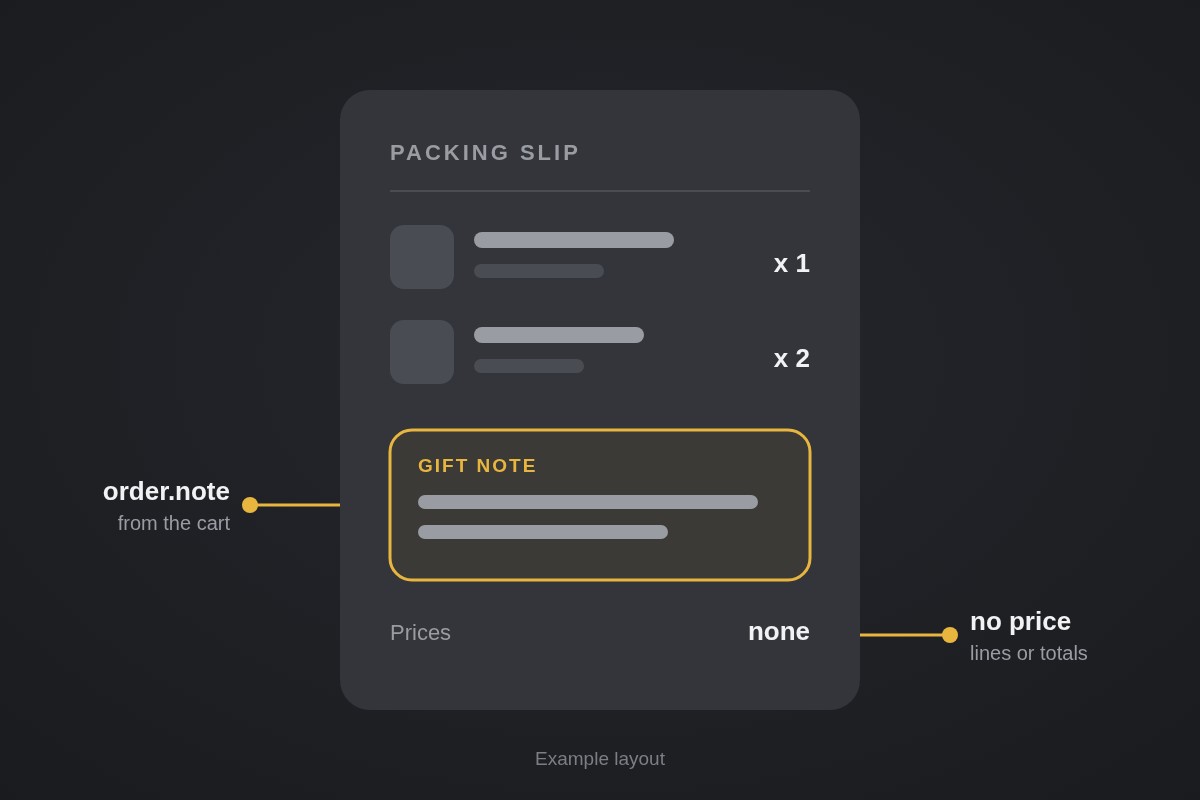
Collecting the note is half of it. In Settings → Shipping and delivery, open the Documents section and click your default packing slip template. Shopify renders packing slips with Liquid, and its variable reference lists order.note as the note attached to the order.
Check your template for that variable. If it is missing, add it somewhere the packer cannot miss it, such as above the item list, with a clear label like "Gift message".
Then click Preview, search for a real order that has a note, and read what prints. Save once it looks right. You cannot save a template with Liquid errors, so a typo will stop you rather than ship a broken slip.
If you also use an order printing app, remember it has its own templates. Editing the Shopify packing slip does nothing to what the app prints. Check which one your packers actually use.
Step 3: keep prices off the slip
Open the same template and look at everything that reveals money, not only the unit price column:
- unit prices and line totals
- the subtotal and order total
- discount lines (a visible "20% off" tells the recipient a lot)
- the shipping line
- taxes
Delete those blocks, keep item name, variant, quantity and the gift message, and preview again against a real order with a discount code on it.
Here is the trade-off. The packing slip template applies to every order. Shopify gives you one default template, so a price-free slip is a price-free slip for all orders. For most stores that is fine, because the buyer already has prices in the confirmation email. If you ship wholesale orders where the receiving team needs prices on the slip, that is where an order printing app with conditional logic earns its place. Apps that add an "Is this a gift?" checkbox can pass the flag to a template, but note that the flag has to reach whoever packs the box. If a 3PL packs your orders, ask them what they print.
Worked example (hypothetical numbers): a $48 candle set ordered with a 15% code. A slip that hides the line price but keeps a "Discount: -$7.20" line still tells the recipient it cost about $41. The price is out. Remove the discount line too.
Step 4: make wrong addresses cheap to fix
Gift orders carry more address errors than normal orders. Buyers type the recipient's address from memory, or send to a work address that closes for the holidays.
Shopify admin lets you edit an order's shipping address yourself before fulfilment. The cost is the back and forth: the buyer emails, you reply, you edit. Our guide to letting customers change their shipping address after checkout covers the options.
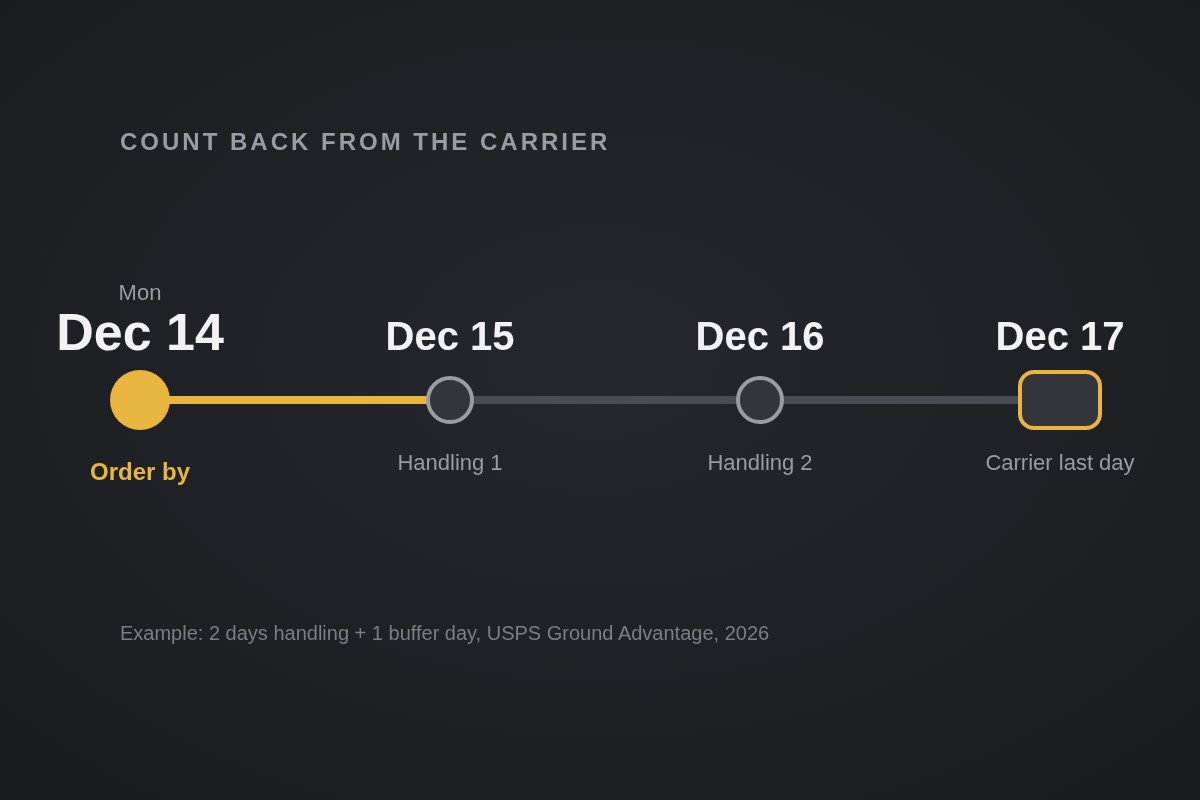
Whatever you choose, set an edit cutoff and put it next to the shipping cutoff. The post on setting your holiday shipping cutoff shows how.
Step 5: give the recipient a way out
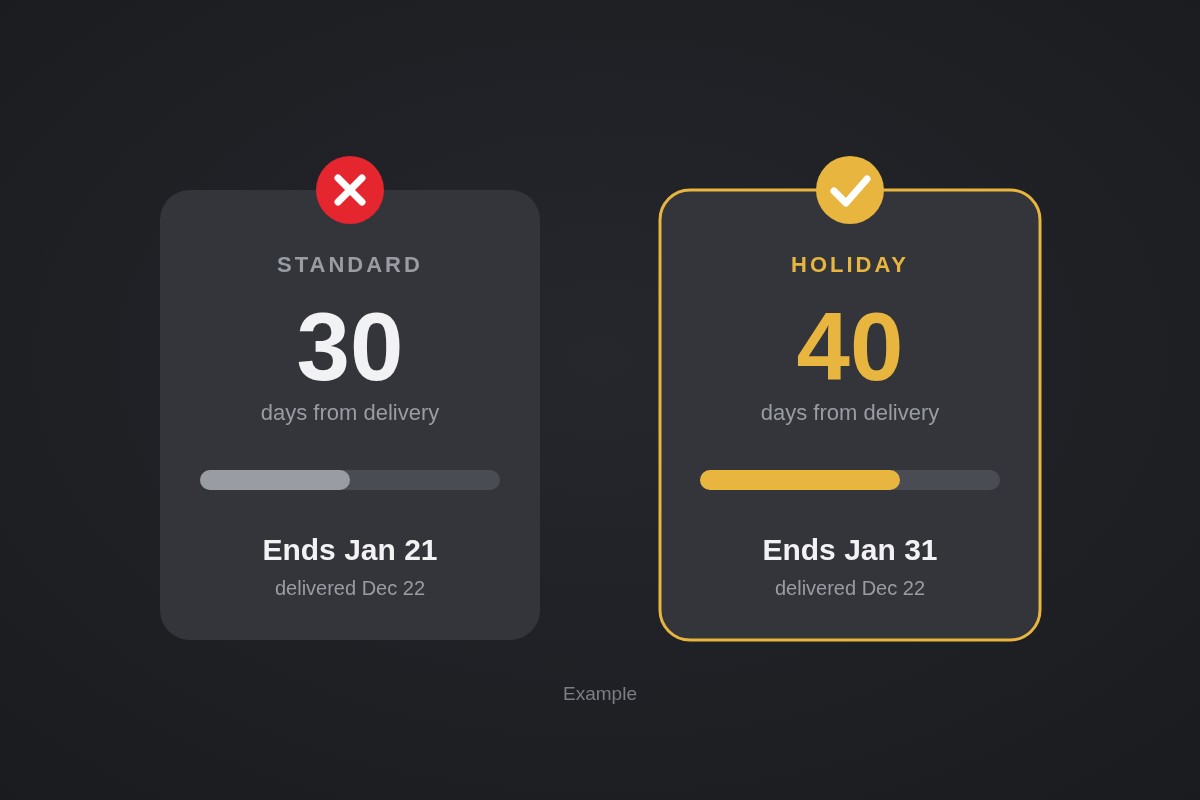
A recipient who gets the wrong size has no order number and does not want to ask the buyer what it was. Print one short line on the slip, under the gift message: how to exchange, what they get (exchange or store credit), and how many days they have, counted from delivery.
Decide that policy deliberately. A refund to the original payment method should go to the buyer, not the recipient. Store credit or an exchange is the clean answer for the recipient. The post on setting a holiday return window walks through margins and dates.
If your gift orders include wrapping, consider pricing it as its own add-on rather than burying it. Gift wrap as a cart goal shows how to offer it without cheapening free shipping, and Goalify (free under 10 orders a month, then from $3.99) is built for that kind of cart goal.
Test one gift order before the cutoff
Do this once, today:
- Place an order on your live store with a discount code and a message in the cart note.
- Open the order in admin and confirm the note is saved on it.
- Print the packing slip from the order and read the paper. Is the note there? Is any price, discount, tax or shipping amount visible?
- Ask whoever packs the orders to confirm they print the same template.
- Cancel or refund the test order if you do not ship it.
If you also want to catch other holiday problems on the site before the cutoff, run the free CRO audit on your top product page.
Frequently asked questions
Does Shopify have a built-in gift message field at checkout?
Shopify themes can show an order note box on the cart page, and that note is saved on the order. A gift message field inside the checkout itself is not part of the standard setup for most stores, so the cart note or an app is the usual route.
Why is my gift note not showing on the packing slip?
The packing slip only prints what its template asks for. If the template no longer contains the order.note variable, the note stays in the admin and never reaches the box. Merchants have reported notes disappearing from slips after a theme update.
How do I hide prices on a Shopify packing slip?
Open the packing slip template under Settings, Shipping and delivery, Documents and delete the price lines and the totals block. Preview it against a real order before you save. Because that edit applies to every order, many stores simply keep prices off the slip entirely.
Can a customer change the gift address after ordering?
Only if you give them a way to. Shopify admin lets you edit the order yourself, and Reviso lets customers fix an address before fulfilment without a support ticket.
Should gift orders get a different return policy?
The buyer paid, but the recipient holds the box. Say plainly whether the recipient can exchange or take store credit without the order number, and count the window from delivery.