 Addy
 Addly
 Goalify
 Monet
 Reviso
 Rankly
Key takeaways
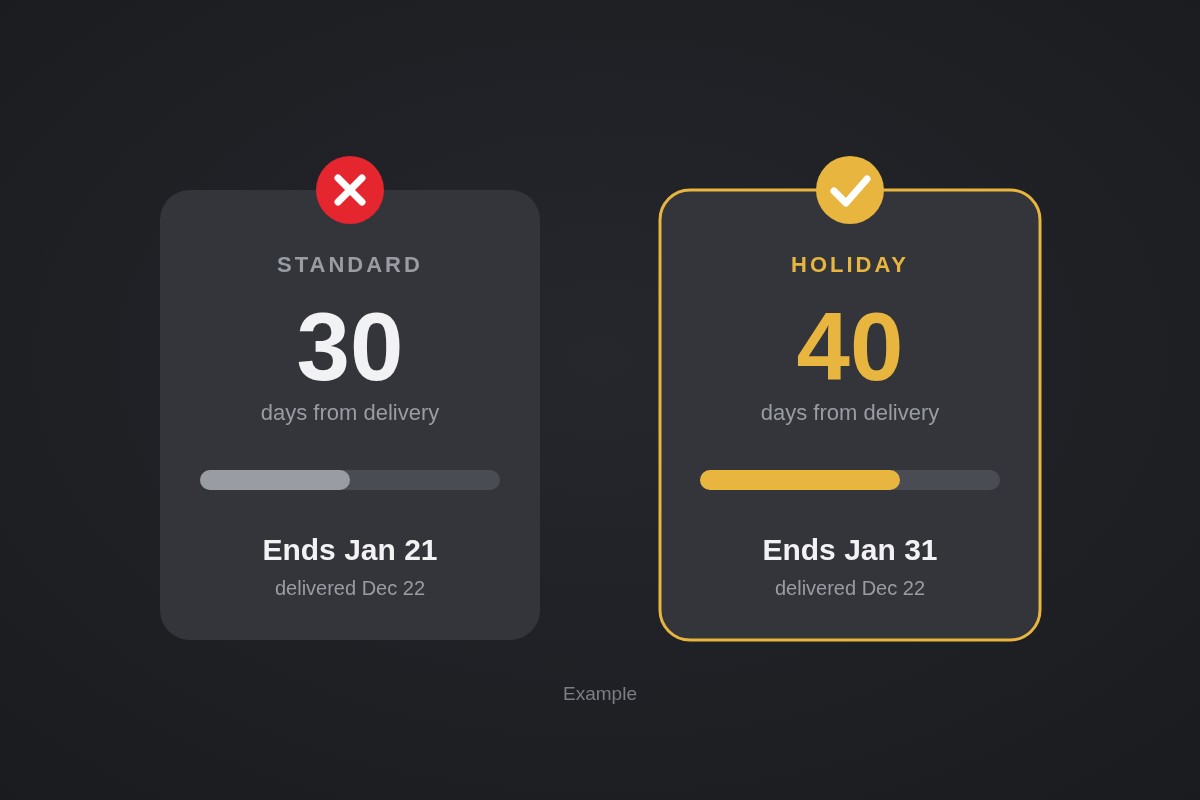
- Shopify's return window counts from delivery, not from the order date, so a 30-day window on a gift delivered December 22 ends January 21 without any holiday setting.
- Shopify has no start and end date for a return window; you change the days by hand and the change only applies to future orders.
- To end every holiday return on January 31, 2027, set Custom days to the number of days between your earliest expected delivery and that date, then lower it again in January.
- A return window override applies to a collection or product and the shortest window wins, so use a short override for items you do not want extended, and final sale for items you will not take back.
- Shopify does not deduct a restocking fee from the refund for you, so a fee only protects margin if your team deducts it when creating the refund.
Set the holiday return window in Settings → Policies → Return and cancellation rules, choose Custom days, and pick a number that ends on a calendar date you can live with, such as January 31, 2027. Shopify will not schedule it for you, so you set it now and put a reminder in your calendar to lower it afterwards.
Gift buyers want to know one thing before they order: can the recipient send it back in January? A clear answer lifts confidence. A vague one sends shoppers to a competitor with a printed date on the product page. This guide covers the exact settings, the arithmetic for a fixed end date, and the margin traps.
Why the default window already runs into January
Shopify counts the return window from delivery, not from the order date. In the return rules, the Starting from menu offers Item's delivery or Delivery of last item in order.
That matters for the holidays. A parcel ordered December 10 and delivered December 16 with a 30-day window can be returned until January 15. A parcel delivered December 23 can come back until January 22. You may not need a special holiday window at all; you may only need to say clearly what the existing one means.
Set the window in Shopify
Source: Shopify's help article on return and cancellation rules.
- In the admin, go to Settings → Policies.
- In Return and cancellation rules, click the rule you want to edit.
- Turn on return rules in the Return rules section.
- Under return window, pick No returns, 14 days, 30 days, 90 days, Unlimited or Custom days.
- Choose Starting from: item's delivery, or delivery of the last item in the order.
- Tick Extend to account for weekends or holidays. If the last day lands on a weekend or holiday, the window moves to the next business day. Christmas Day 2026 is a Friday and January 1 is also a Friday, so this setting prevents a lot of arguments.
- Save.
Two limits to know. Changes apply only to future orders, and return rules apply only to fulfilled items. Cancellation rules cover unfulfilled ones.
Work out the number of days for a fixed end date
Shopify takes days, not a date, so you do the subtraction. The window counts from delivery, which means every order has a different end date. Pick the one you can defend and tell customers plainly.
Example numbers, not data from a store. You want a clear promise: "Return anything bought this season by January 31." Orders placed from November 25 and delivered as early as November 30 would need 62 days to reach January 31. A parcel delivered on December 20 then gets until February 20, three weeks longer than the promise.
Two ways to handle this:
- Round to a clean number. Set Custom days to 60 and write "60 days from delivery" on the product page. A parcel delivered on December 1 ends January 30; one delivered December 20 ends February 18. It is a simple promise and easy to support.
- Move the window in steps. Set 60 days on November 25. Around December 10 lower it to 45 days. Orders placed from then on are delivered later, so their end date stays near the end of January. This needs reminders, because the change affects only future orders.
Whichever you pick, put the same words in your policy page, product pages and confirmation email. A mismatch between the page and the admin setting is where most holiday disputes come from.
Protect margin with overrides, final sale and fees
A longer window lifts risk on the products that come back most. Shopify gives you three tools.
Return window override. Click Return window override, enter the number in Days, set Applies to to Collections or Products, and add them. Shopify's changelog gives the example of a 14-day window for a "Holiday 2026" collection while the storewide default stays at 90 days. You can set overrides within market-specific return rules too, down to a variant, as the changelog entry explains. If an item sits in several overrides, the shortest window applies.
Final sale items. Under Final sale items, set Applies to to Collections or Products and add the ones you will not take back, such as personalized goods or items that cannot be resold. Final sale wins over any override. You can use products or collections for final sale, not both, and bundles cannot be marked final sale.
Restocking fee and return shipping. You can enter a percentage in Restocking fee and set return shipping to free, a flat rate or customer-purchased labels. Shopify does not deduct the fee from the refund automatically, so your team has to deduct it by hand when creating the refund. If you sell in the US, note Shopify's statement that tax on return shipping fees starts October 23, 2026, for US-shipped orders using Shopify Tax or Tax Platform, and never applies to restocking fees.
A sensible holiday setup in practice: a long storewide window, a shorter override on categories with high return rates, final sale on hygiene or custom items, and flat-rate return labels.
Do the margin maths before you commit
Example numbers, not data from a store. Say you ship 1,000 holiday orders at a $60 average order value, and 8% come back on your normal window. A longer window lets more gift recipients return, so suppose 10% come back. That is 20 extra returns, or $1,200 of revenue refunded.
If each return also costs $6 to process and ship back, the extra cost is another $120. Against that, the stronger promise should convert more first-time buyers. You will not know the true trade until you compare return rate and conversion with last season, so record both before you change the window. Do not copy a rate from a blog post; use your own return report in Analytics.
Also compare the total with your break-even ROAS: a higher return rate lowers real margin, and ad targets should reflect it. For ways to bring the rate down before items ship, see how to reduce ecommerce returns.
Make returns and exchanges easier to handle
The January queue is mostly small requests: wrong size, wrong color, a gift that arrived twice. Exchanges keep the revenue, refunds do not. If customers can start the change themselves, your inbox stays manageable.
Reviso is a free app that lets customers edit address, shipping, variants, quantities and items before fulfillment, deflects cancellations, and handles returns and exchanges. It fits the step where you would otherwise answer each request by email. Pair it with a plain statement of your window on the order status page; see how to customize the Shopify order status page.
State the window where shoppers decide
Publishing the rule is half the job. Put it in four places:
- The product page, near the add to cart button: "Gift returns until January 31."
- The cart or checkout footer, with a link to the full policy.
- The order confirmation email and shipping email.
- The refund policy under Settings → Policies, so it matches the admin rule word for word.
If you want to see where your product page loses trust, run the free CRO Audit on a product URL.
Checklist for this week
- Read your current rule in Settings → Policies.
- Decide the promise: a date, or a number of days from delivery.
- Set Custom days, Starting from, and the weekend extension.
- Add short overrides and final sale for high-return and non-resellable items.
- Update the policy page, product pages and emails with the same wording.
- Calendar a reminder for the first week of January to lower the window.
Frequently asked questions
Can I schedule a holiday return window in Shopify?
Not in the return rules themselves. Shopify's return rules take a number of days, and the help article describes no start or end date. You change the window before the season and change it back after, and the change applies only to orders placed after you save it.
Does the return window start at the order date or delivery?
You choose. In Return rules, the Starting from menu offers Item's delivery or Delivery of last item in order. Starting from delivery is the friendlier choice for gifts, because a late parcel does not eat into the window.
How do I keep final sale items out of the holiday window?
Add them under Final sale items by collection or product. An item that is both final sale and in a return window override stays final sale. Bundles cannot be set as final sale, so decide how you will treat them before you extend the window.
Do return rules change orders that are already placed?
No. Shopify says changes apply only to future orders. If you extend the window on November 25, orders placed on November 24 keep the old rule, so tell your support team which orders get which window.
Should I charge for return shipping during the holidays?
That depends on your margin and your average order value. Under Return shipping you can pick free returns, a flat rate or customer-purchased labels. A flat rate keeps the policy easy to explain while covering part of the label cost.