 Addy
 Addly
 Goalify
 Monet
 Reviso
 Rankly
Key takeaways
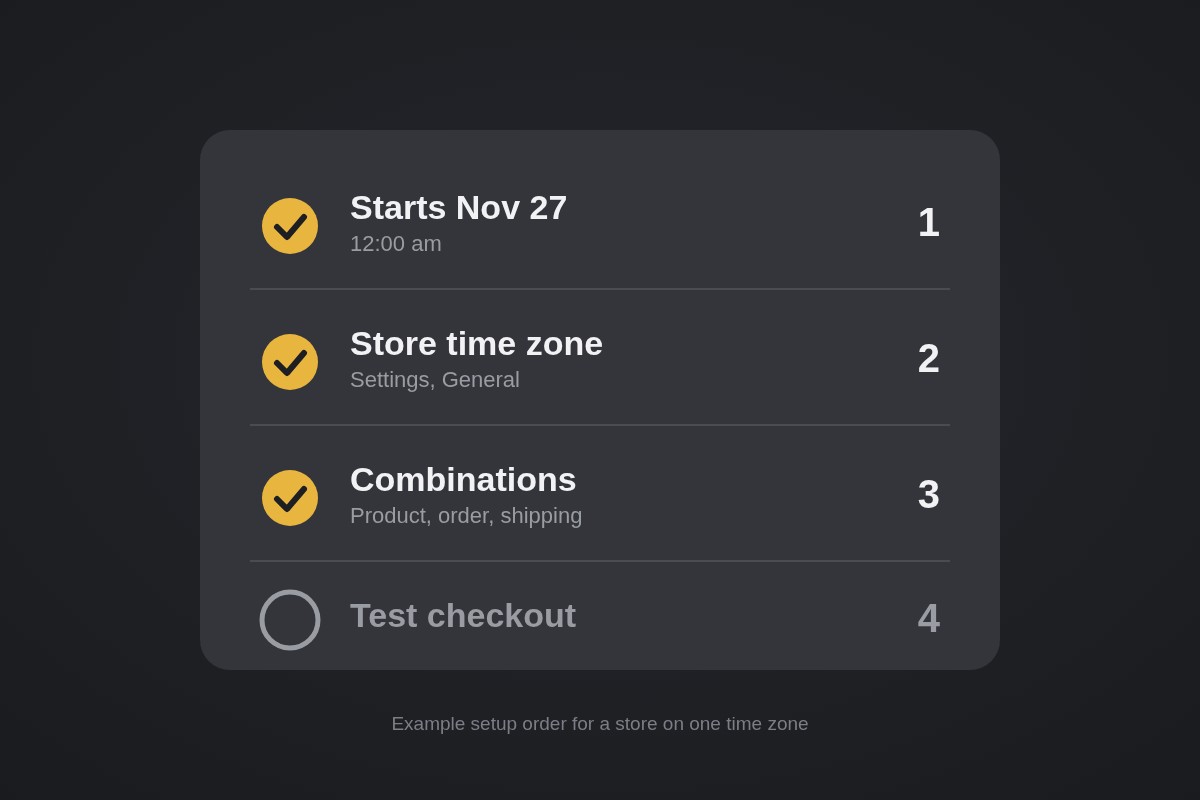
- Shopify reads discount start and end dates in your admin time zone, so a Nov 27 start in an Eastern store goes live at 12:00 am Eastern, which is 9:00 pm Thursday for a shopper on the US West Coast.
- Use the same start and end date to make a one-day discount, and leave the end date empty only if you plan to turn it off by hand.
- Discounts never combine unless each one's Combinations setting allows it, and when two cannot combine, Shopify applies the better one for the cart.
- Reactivating an expired discount sets it to Active with no end date, so it keeps running until you stop it.
- Run one real test order through checkout before Nov 27, using a discount limited to your own customer record.
Black Friday is Nov 27, which leaves you about a week. The safest way to run the sale is to build every discount now, set exact start and end times in your admin time zone, decide what combines with what, and place one real test order before the day. Do that and the sale starts when you planned and stops when you planned.
Most guides stop at "set a start and end date." The failures happen after that: a start time that is hours off for half your shoppers, two discounts that quietly refuse to stack, or an expired code that someone reactivates and forgets. This post covers those.
Check your store time zone first
Shopify reads discount dates in the time zone set in your admin. Go to Settings → General, find Store defaults, and look at the Time zone list. Fix it before you build anything, because every discount you create follows it.
Shopify's own example: a start date of November 26 in an EST store begins at 12:00 am EST that day. So plan the clock, not just the date.
Here is what a midnight Nov 27 start means for shoppers (example, store on US Eastern time, UTC-5 that week):
| Shopper location | Sale goes live |
|---|---|
| New York | 12:00 am Fri |
| London | 5:00 am Fri |
| Berlin | 6:00 am Fri |
| Los Angeles | 9:00 pm Thu |
If your ads or emails say "starts at midnight," they are right for one audience and wrong for the others. Pick the start that suits your biggest market and say the zone in the copy: "Starts 12:00 am ET."
Build each discount with exact Active dates
In your admin, go to Discounts → Create discount and choose Amount off products or Amount off orders. Then pick Discount code or Automatic as the method.
- Automatic suits a sitewide or collection sale. The customer sees the price drop with no code to type.
- Discount code suits email and SMS lists, creators and ad-specific offers.
Set the value, any minimum purchase or quantity, and the products or collections. Then scroll to Active dates:
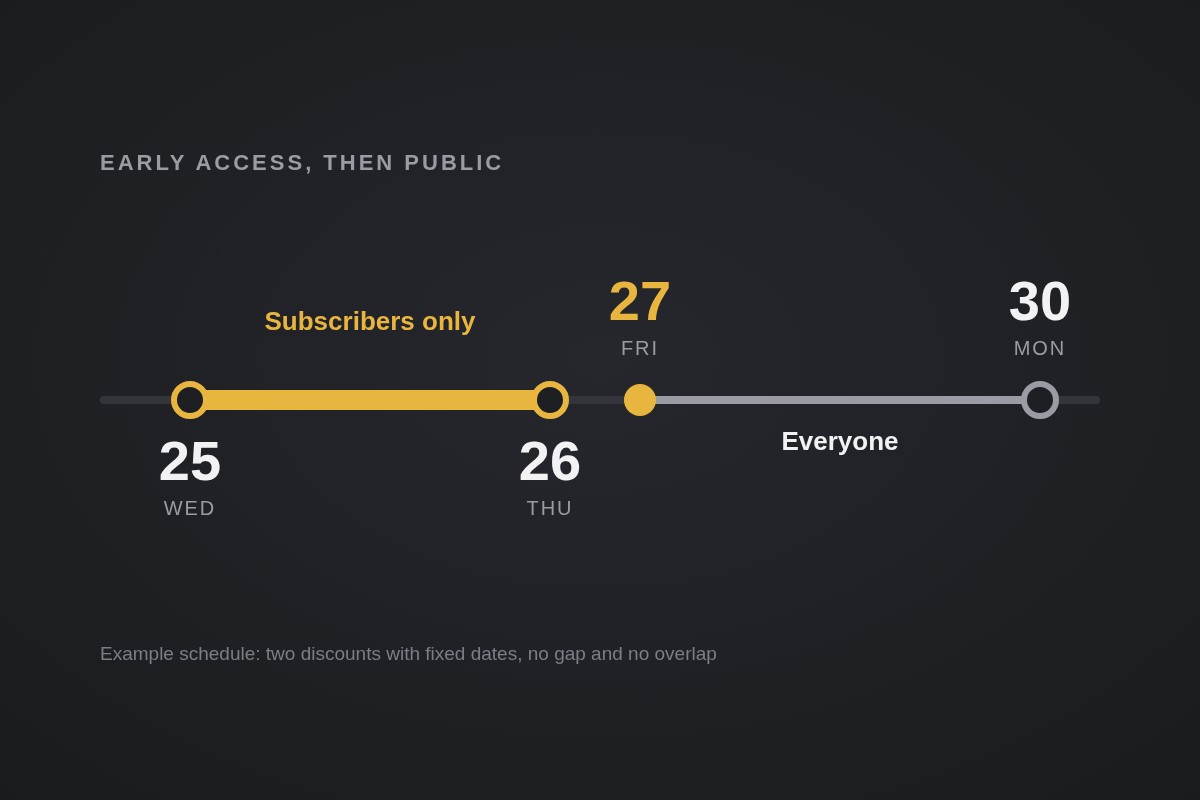
- Set the start date and time.
- Set an end date and time. If you leave it unset, the discount does not expire.
- For a one-day sale, use the same day for start and end.
Decide your window now. A common shape is one start on Friday and one end on Monday night, Nov 30. Whatever you pick, write down the end time before you save. A discount with no end date is the easiest way to run a "Black Friday" price in the middle of December.
If you want a free shipping offer alongside the price cut, create it as its own Free shipping discount. It is a separate discount class, which matters for the next section.
Decide what combines with what
Discounts don't combine unless each one's Combinations setting allows it. In the Combinations section, tick the classes a discount can stack with. Shopify sorts discounts into three classes: product, order and shipping.
What Shopify documents:
- Order with shipping, product with shipping, and product with product on separate items combine for every merchant.
- Product with order, and order with order, need eligibility (your store can't use
checkout.liquidcustomizations). - Product discounts on the same line item combine only on Shopify Plus.
- Combinations work on the Online Store, the Storefront API and Shopify POS, not on external checkouts such as Facebook, Instagram or Google.
Order of application: product discounts first, then order discounts on the revised subtotal, then shipping. Percentage order discounts are each calculated on the original subtotal, not on each other's result.
Limits to know before you build a pile of offers: up to 25 active automatic discounts, and a customer can use up to 5 product or order codes plus 1 shipping code per order.
When two discounts cannot combine, Shopify applies the best one for that cart. If two product discounts have the same value and target the same items, Shopify may pick one for checkout performance, and that is expected.
Worked example (hypothetical numbers): an automatic 20% off the "Gifts" collection and a $5 off code for subscribers. If both are product or order discounts and neither allows combining, a customer gets only the better one for their cart. A $50 gift cart gets $10 from the 20% and loses the $5. If you want both, tick the right classes on both, and test the cart.
For the full stacking rules and common surprises, read Shopify discount stacking explained.
Point each discount at the right customers and markets
In the eligibility section you can choose All customers, Specific customers, Customer segments or Markets. Markets limits the discount to the markets you add.
Use that for a sale that differs by region. A US-only code should not turn up in your EU market at a price you haven't checked against local VAT and shipping. Remember the dates still follow your admin time zone, so a market in a distant zone starts and ends at a different local hour.
Two more points from Shopify's discount docs:
- Automatic discounts on Point of Sale work only at POS Pro locations. POS Lite locations don't get them at checkout.
- Amount off automatic discounts don't apply on the post-purchase page at checkout. If you run a post-purchase offer, price it separately.
Add a progress goal if you need more than a flat percentage
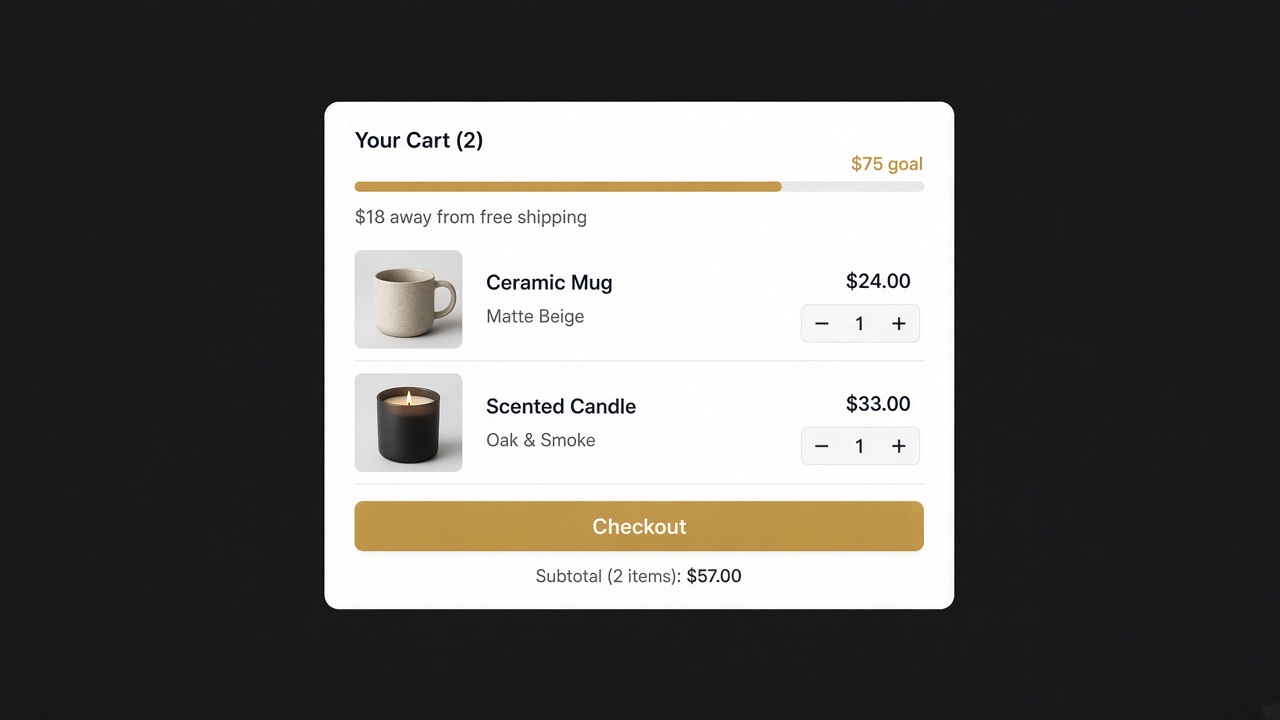
A flat discount covers the headline price. If you also want "spend $75, get a free gift" or a free shipping threshold that fills in a bar as the cart grows, Shopify's discount types alone won't draw that on the cart. Goalify builds free shipping progress bars, free gift and discount goals, BOGO and tiered rewards, and it adds the gift automatically when the goal is met. It is free under 10 orders a month, then $3.99, $7.99 or $11.99 on paid plans.
For bundles like "buy 2, save 15%" without cutting the price of everything in the store, Addly handles bundles, frequently bought together, volume discounts and add-ons. It is Built for Shopify and free under 15 orders a month.
Build any of these now, not on Thursday night. Offers added late are the ones that go untested.
Run a test order before Friday
You can't preview a discount by waiting for it to start. Build a separate test discount instead:
- Create a discount that mirrors the real one: same type, value, minimums, collections and Combinations settings.
- Set eligibility to Specific customers and add your own customer record.
- Start it today, so it is active now.
- Open your store in a private browser window, add products from the sale collection, and go through checkout as that customer.
- Check the line prices, the order discount line, shipping, and the total on mobile.
- Repeat with a cart that has two offers in it, such as a product discount plus a shipping discount.
- Go back to Discounts, open the test discount, click Deactivate and confirm.
Cart contents matter more than the code. Test one cart under the minimum, one just over it, and one that mixes a sale item with a full-price item.
For wider store prep, 15 things to fix on your Shopify store before November 27 covers the rest of the list.
Stopping and extending the sale
When the end time comes, the discount expires on its own if you set an end date. Check it at that time: place a cart in a private window and confirm the price is back to normal.
To end early, open the discount from Discounts, click Deactivate under its name, then confirm. A customer who applies a deactivated code sees an error saying the store can't find a valid discount for that code. To deactivate several at once, tick them on the Discounts page and click Deactivate discounts.
To extend, think twice before reactivating an expired discount. Shopify sets it to Active with no set end date, so it runs until you stop it. If you do reactivate, edit it straight away, set a new end date, and save.
Your final-week checklist:
- Admin time zone confirmed in Settings → General.
- Every discount has a start and an end date and time you wrote down.
- Combinations ticked on every discount that should stack, and untouched on those that shouldn't.
- Markets set where the offer is regional.
- One test order placed and the test discount deactivated.
- A reminder set for the end time.
Frequently asked questions
What time does a Shopify discount start on Black Friday?
It starts at the time you set, read in your store's time zone from Settings, General. A start date of Nov 27 with no time change begins at 12:00 am that day in that zone. Shoppers in other zones see it start at their local equivalent.
Can I schedule a Shopify discount to end automatically?
Yes. In the Active dates section, set an end date and time. If you leave the end date unset, the discount does not expire, so check it before you save.
How do I stop a Black Friday discount early?
Open it from Discounts, click Deactivate under its name and confirm. A customer who tries a deactivated code sees an error saying the store cannot find a valid discount for it.
Can an automatic discount and a discount code run together?
Only if the Combinations setting on each one allows it. Discounts fall into product, order and shipping classes, and you can tick which classes each discount combines with.
Can I limit a Black Friday discount to one country?
Yes. Set eligibility to Markets and add only the markets that should get it. Check the dates against that market's local time as well, since the dates follow your admin time zone.