 Addy
 Addly
 Goalify
 Monet
 Reviso
 Rankly
Key takeaways
- Export the Total sales by order report with the date range set to the full calendar year, and pick Full report so the hidden columns come along.
- Shopify payouts are batched, so one deposit can cover many orders; no single built-in report matches each order to its payout.
- Run a trial export in early December, then repeat it on January 2 so late refunds and December 31 orders are in the final file.
- Shopify app and subscription charges live under Settings, then Billing, not in the sales reports.
- Decide once whether refunds count on the refund date or the original order date, and tell your accountant which rule you used.
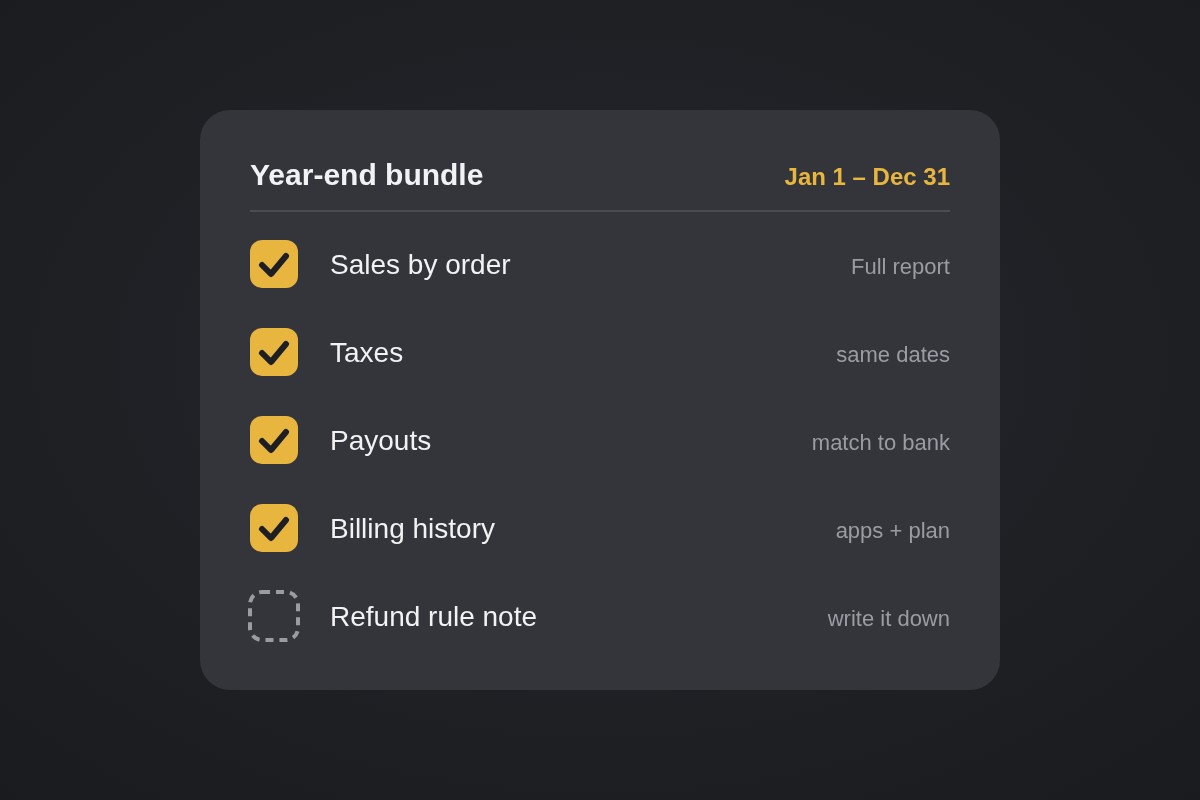
Export the Total sales by order report for the full calendar year from Analytics → Reports, choose Full report, and send it with your tax report, payout export and billing history. That four-file bundle answers most of what an accountant asks for. The rest of this post shows where each file lives, what each one leaves out, and how to avoid a January scramble. Your year closes on December 31, so you have about five weeks to do a dry run.
Why the dry run belongs in early December
Most stores treat year-end reporting as a January chore. The trouble is that you only find gaps when the year is over. A missing tax setting, a refund logged against the wrong month, or a billing history that doesn't go back far enough is much easier to sort out while orders are still coming in.
Merchants on the Shopify Community keep hitting the same wall: they want one file for taxes and find that Shopify offers several. One thread asks for a single report with gross sales, discounts, returns, shipping, tax by type, fees and the payout per sale. The answer was that no built-in report does that, because deposits are batched. Better to learn that now than on filing day.
Step 1: export the sales report
This is the file everything else hangs on.
- In your Shopify admin, go to Analytics → Reports.
- Open Total sales by order.
- Set the date range to the calendar year, January 1 to December 31.
- Click the horizontal menu icon, then Export.
- If the dialog offers a choice, pick Full report, not Current page. Then click Export.
Shopify's help page says the report exports as CSV with gross sales, net sales, taxes, returns and shipping charges, and tells you to choose the correct time period, such as the calendar year. The Full report option for the older Finances reports includes columns that aren't displayed by default. Current page only exports what you see on screen, which is how people end up missing the column their accountant needs.
The file saves to your device's default downloads folder. Most reports can also export as XML, JSONL or Apache Parquet when a format choice appears. CSV is what accountants want.
Step 2: export the tax report that matches where you sell
Which tax report you need depends on your market. Shopify's tax reports page lists these:
- Taxes (Analytics → Reports → Taxes): summarizes the sales taxes applied to your sales. This is the general one.
- United States sales tax: needs Shopify Tax in the US. Click a state to open the Jurisdiction report or the Detailed transactions report, then export the detailed one to import into other software.
- Canada sales tax: needs Shopify Tax in Canada and a store currency set to CAD. It has a Province summary and a Detailed transactions report.
- Managed Markets taxes: only holds data if you use Managed Markets in Canada or the United Kingdom. It shows domestic taxes Global-e paid to you on international orders.
Shopify's page doesn't describe an EU or UK VAT report. If you sell into those markets, ask your accountant which VAT figures they want, then check they can be built from the taxes and sales exports before December ends.
Step 3: pull payouts and match them to the bank
This is where the real work is. Webgility's reply on that Community thread states it plainly: Shopify deposits are batched. One payout can combine several orders, minus fees, plus refunds or adjustments, so there is no native report that lines each sale up with its deposit.
So accountants reconcile from the bank backward. A practical way to prepare:
- Export your payout list for the year from the Finance area of your admin (the Finance page is where Shopify shows earnings, spending and repayments).
- Export your bank statement for the same year.
- Make sure the payout dates and amounts agree with the deposits. Payouts that start in December can land in January, so expect a few to straddle the year line.
Most bookkeeping checklists say to reconcile at the payout level and stop there. They don't explain the gap between payout date and order date, or which report shows refunds. Your accountant will care about both. Tell them that a payout dated January 3 may hold December orders.
Step 4: refunds and returns
Refunds are the main reason Shopify, your ad platform and your books disagree at year-end. A Community thread on year-end reporting describes merchants having to decide whether refunds hit the refund date or the original order date, then apply that rule everywhere.
Pick one. Write it down. Hand it to your accountant with the files. If you have a holiday return window running into January, see how to set a holiday return window on Shopify, because refunds issued after December 31 for December orders will change your January numbers, not your December ones, under the refund-date rule.
Step 5: app fees and your Shopify bill
None of the sales reports include what you pay Shopify and your apps. Those charges are on the Billing page (Settings → Billing). Shopify's help pages point you there to access upcoming and past bills.
A Community answer from Shopify staff suggests opening View all billing history and exporting bills by date for the past year. Before you rely on it, check that the first line of the export is in January. If it starts later, download what you can now and keep each month's bill as it arrives.
Card processing fees are a known gap. One merchant in the year-end thread reported that billing exports leave them out, and nobody had an answer. Those fees sit in your payout data, so ask your accountant to pull them from the payout reconciliation rather than from billing.
Step 6: send the bundle
Put the files in one folder named for the year. Add a short note with your rules.
| File | Where it comes from |
|---|---|
| Total sales by order, Full report | Analytics → Reports |
| Taxes (plus US or Canada detail if used) | Analytics → Reports |
| Payout list | Finance page |
| Bank statement | Your bank |
| Billing history | Settings → Billing |
The note should say: your refund rule, the date you exported, your store currency, and any markets with their own tax setup. That note saves more back-and-forth than any extra report.
A cost-of-goods figure is another thing worth including. A Community reply on year-end profit warns that if a tool applies today's supplier cost to past orders, the annual P&L comes out wrong. Send your actual purchase invoices or a COGS sheet for the year instead of relying on current product costs.
A short calendar to work backward from
- This week to December 10: do the dry-run export of the sales, tax and payout files. Fix any gaps.
- December 15 to 30: keep bills and invoices as they arrive. Close out supplier payments.
- December 31: the books close for the calendar year.
- January 2 or 3: run the final exports with the same date range and send the bundle.
Frequently asked questions
Where do I find my Shopify year-end sales report?
Go to Analytics, then Reports, and open Total sales by order. Set the date range to the calendar year, click the menu icon, choose Export, and select Full report. The file lands in your downloads folder as a CSV.
Does Shopify have one report that matches payouts to orders?
No. Shopify deposits are batched, so one payout can combine several orders, minus fees, plus refunds or adjustments. Your accountant will usually reconcile from the bank deposits backward, using the payout export and the order export together.
Can I export Shopify reports as something other than CSV?
Yes. Most reports export as CSV, XML, JSONL or Apache Parquet when the Export dialog offers a format choice. The older Finances reports default to CSV. For a PDF, print the report from your browser and save it.
When should I export my year-end reports?
Do a trial run in early December so you can fix gaps while there is time. Do the final export on the first or second business day of January, once December 31 orders and last-minute refunds are in.
Do Shopify sales reports include app fees and subscription costs?
No. Your Shopify plan and app charges appear on the Billing page in Settings. Pull those separately and hand them over with the sales files, since they are deductible costs your accountant will ask about.