 Addy
Addy  Addly
Addly  Goalify
  Monet
Monet  Reviso
  Rankly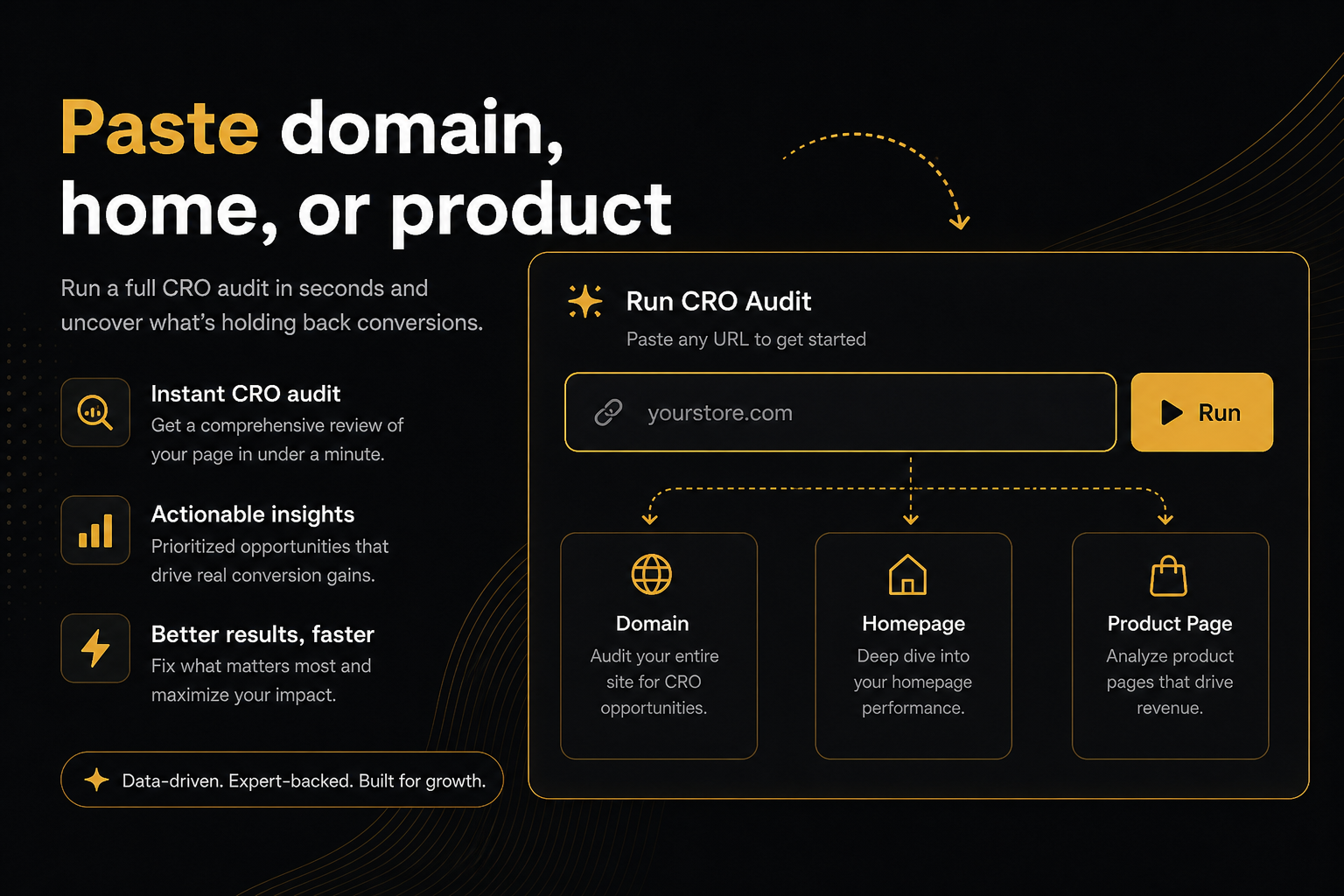
Key takeaways
- https:// is optional. Bare domains work, and the report is ready in about 30 seconds.
- Non-product URLs resolve to a best-selling product when Shopify exposes one, then to a product linked on the page, then to the public catalogue.
- A specific product page is scored as given. The tool will not replace it with a bestseller.
- Password-protected stores work too — paste the store password if we ask. Custom stores we cannot open, and opted-out stores, stop before we read the product page.
- Fix the top constraint, install at most one app-owned leak, then recrawl the same product URL with Audit again.
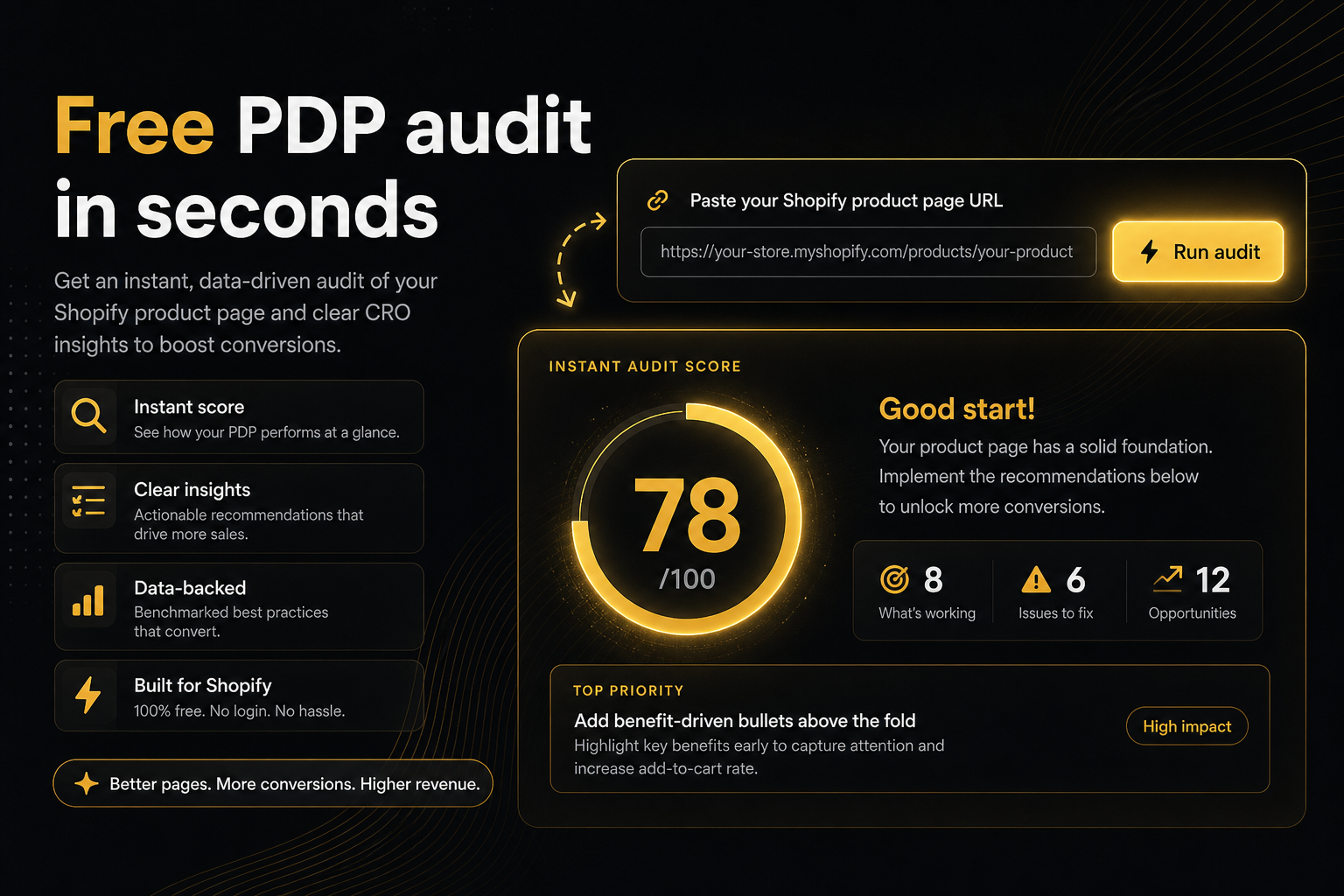
To run the CRO Audit for Shopify stores, open the audit page, paste your store domain or a product URL into the text box and submit. https:// is optional; a homepage or collection resolves to a best-selling product, while a /products/ URL is scored exactly as given. There is no login, no payment, and the report is ready in about 30 seconds.
The audit is only useful if pasting a URL is cheaper than opening the App Store. Here is every path.
What does the audit need from you?
One URL a shopper could load. That is the whole input. The audit reads the public product page, Shopify’s public product payload and the public cart — the same things a visitor sees. It does not ask for admin access, an API key or a theme download. If the store is password-protected, it asks for the storefront password (the one under Online Store → Preferences), uses it once and does not keep it.
Step 1: Open the tool
Go to the CRO Audit for Shopify stores page. Paste a store or product URL. It is a text box, not a browser URL field, so yourstore.com is valid.
Step 2: Decide what you are scoring
I want a first look at the shop. Paste the domain or homepage. Optional www. Optional https://.
I am already on a collection. Paste it. We still score a product, preferably best-selling in that collection.
I care about this SKU. Paste the /products/handle URL, including collection-prefixed product paths Shopify uses. That page wins. We will not swap in a bestseller.
| You have | Paste | What gets scored |
|---|---|---|
| Only the domain | yourstore.com | A best-selling product, or the first product found |
| A collection link | /collections/candles | A bestseller from that collection |
| The page in your ad | /products/the-handle | That exact product page |
| A password-protected store | Any of the above, plus the store password when asked | Same rules as above |
Step 3: What happens after submit
If the URL is already a product, the crawl starts.
If not, the server (or your browser, as a fallback) fetches the page, respects the opt-out meta tag (content="no" blocks; content="no,delete" also erases stored reports), then looks at /collections/all?sort_by=best-selling (or the collection you were on), then product links on the HTML you pasted, then the homepage, then products.json.
The report will say when we picked a product for you, so you are not confused why / became /products/best-seller.
Step 4: Read the output
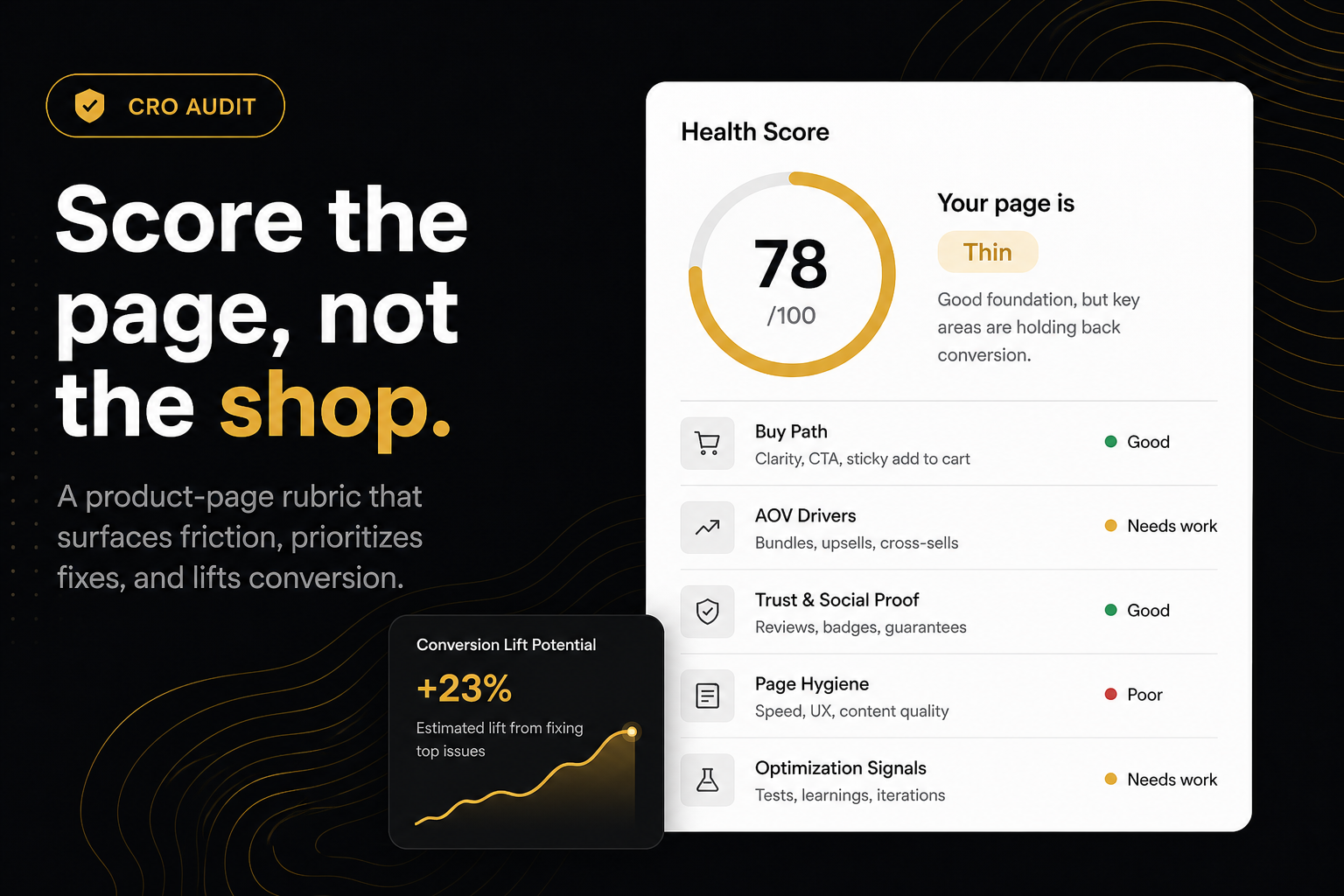
Health score, a status for the score band (Solid, Strong, Uneven, Patchy, Thin, and the rest), and a line beside it naming which rubric missed — Fail in Rubric A or Fails in Rubric A when there is more than one buy-path miss. Ranked fails, screenshots if Chromium ran. Buy path above AOV above hygiene. Theme rows vs app owners.
Read in this order:
- The rubric line. A Rubric A miss is a theme job before anything else.
- The top-ranked fail. That is the next hour.
- Whether that fail is a theme row or an app row. Theme rows are fixed under Online Store → Themes → Customize; app rows name an owner with an install link.
- Everything else — for later, not for today.
Fix the top constraint. Install at most one app-owned leak. Recrawl that product URL. The bands and what each one means are explained in how to read the health score.
Step 5: Share or stop
Badge and PDF if you need an artefact. ?r= for a snapshot that stays until the merchant deletes it. Privacy policy lists what we looked at: the product page a shopper can see, the cart, optional screenshots. If you opened a password-protected shop, that store password is not kept. Not checkout. Not admin.
A worked example
Say your Meta ads land on /products/starter-kit. Paste that URL, not the homepage, because the homepage would hand you the bestseller instead. The report comes back Thin with Fail in Rubric A: one variant option dead-ends with no selectable size and no sold-out message. That is a theme fix in the product template. Publish it, hit Audit again on the same URL, and the buy-path row should be green. Only then look at the Rubric B rows underneath.
Which failures are not bugs?
- If we ask for a store password, paste it from Online Store → Preferences and try again. That is not a fail — it is how password-protected stores work.
- Custom store we cannot open like a normal Shopify shop.
- Opt-out tag.
- No products in the catalogue (new store).
- Rate limit because someone scripted the endpoint.
If you cannot find a product, paste a /products/ URL by hand. That is the escape hatch the domain shortcut is built on.
Common mistakes when running the audit
- Pasting the admin URL. The audit reads what a shopper sees, so use the storefront address.
- Running the domain twice and expecting the same SKU. Two domain pastes can resolve to the same bestseller, but if you are testing a change, paste the product URL.
- Re-running within the cache window and reading an old snapshot. Use Audit again after every theme change.
- Reading the badge instead of the punch list. The badge is the number; the on-page report and PDF are the work.
- Installing every named app in one sitting. The list is ranked so you install one and re-run.
Run it once before the next app install. That is the whole how-to.
Frequently asked questions
What is this score based on?
Ninety9’s product-page rubric — defaults we apply the same way on every public Shopify PDP. It is not a conversion-rate prediction, and it will not fit every store or situation. How we score.
I pasted the homepage and got a product I do not care about. Why?
That is the bestseller, or the first product we could find. The report says when we picked for you. Paste the /products/ URL for the SKU you want and that page is scored as given.
Do I need to be logged in to Shopify?
No Shopify admin login. Password-protected stores work too — we will ask for the store password from Online Store → Preferences, not your Shopify login, then forget it.
How do I opt my store out of the CRO audit?
Put <meta name="ninety9-audit" content="no"> in the head of layout/theme.liquid, then paste the shop URL on the CRO audit page. The next run stops before reading the product page. Use content="no,delete" if you also want stored reports erased.
Will the same URL twice give the same result?
Reports for a product URL are cached about 10 minutes, so a quick repeat may return the snapshot. Use Audit again after a theme change to force a live crawl.
Can I run it on a collection?
Yes, as a starting point. The audit uses the collection to find a product, preferably a bestseller in it, and scores that product page. The grid itself is not scored.
How long does the CRO audit take?
About 30 seconds. There is no signup step, so the time from paste to punch list is the crawl itself. Heavy use is rate-limited so one store cannot block the queue for everyone else.