 Addy
Addy  Addly
Addly  Goalify
  Monet
Monet  Reviso
  Rankly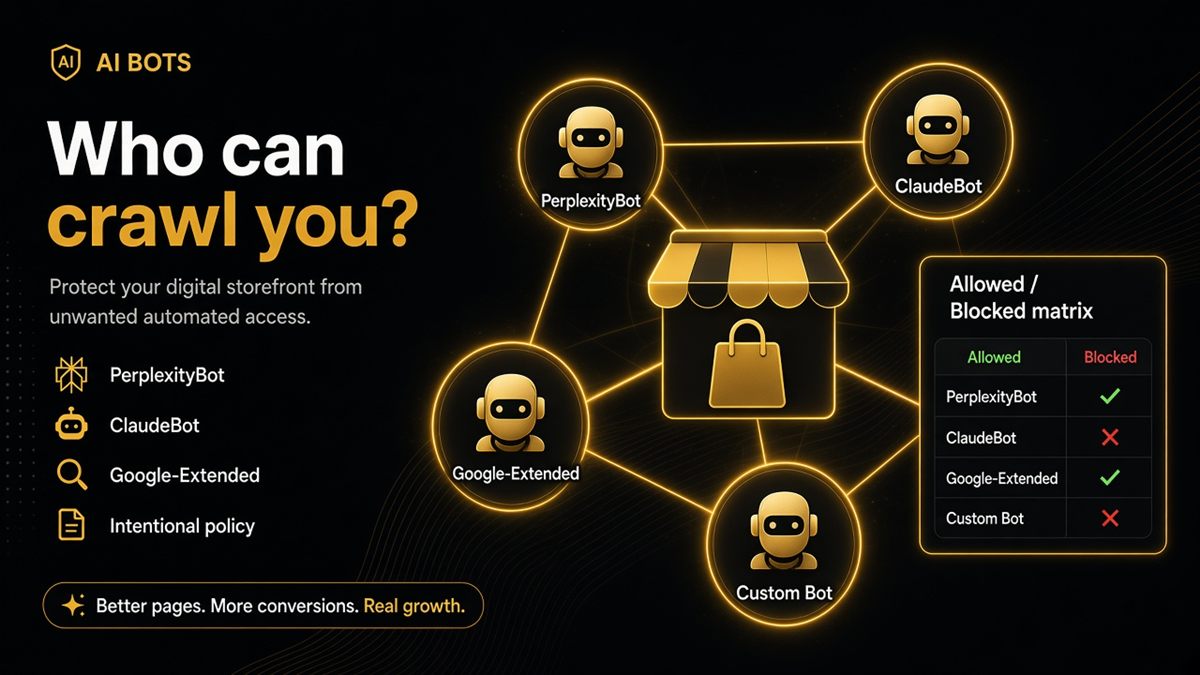
Key takeaways
- Different assistants use different crawlers — review more than GPTBot alone.
- Allow or deny is a policy decision; accidental Disallow from an app snippet is the bug.
- The SEO & AI Audit lists blocked AI bots found in robots.txt so you are not parsing syntax under pressure.
- Re-check robots.txt after installing security or SEO apps.
- Googlebot and Google-Extended are separate decisions; do not treat them as the same token.
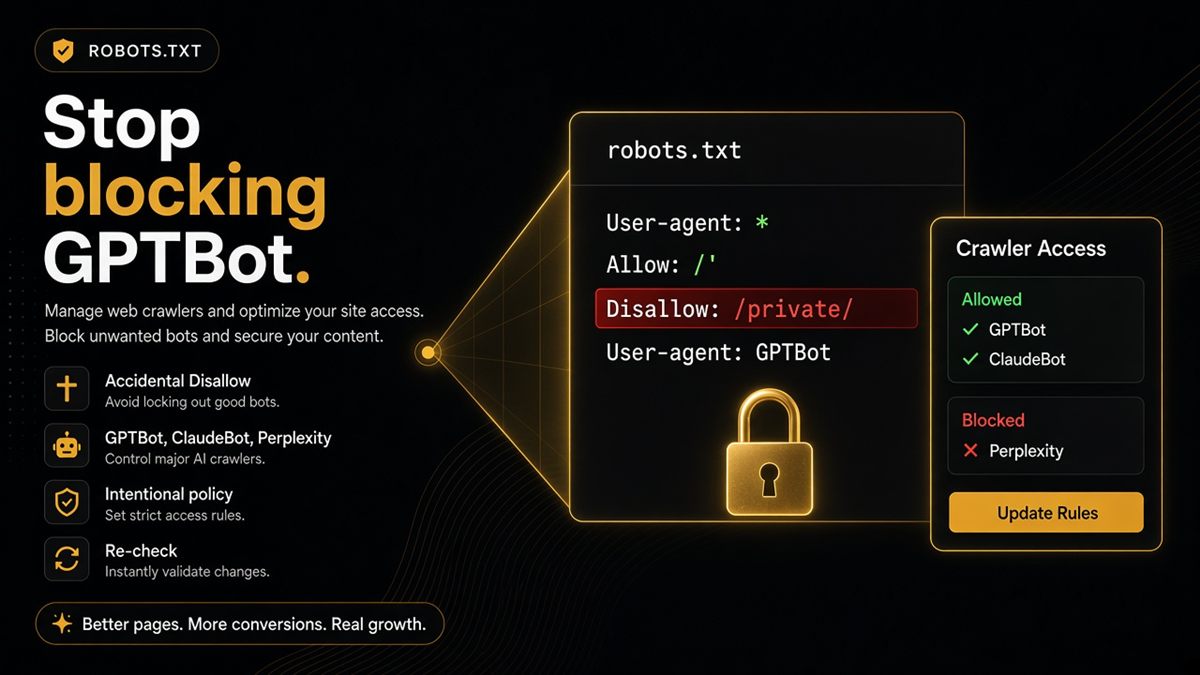
ChatGPT is not the only assistant your shoppers use. Perplexity, Claude and Google’s AI surfaces have their own crawlers — PerplexityBot, ClaudeBot and Google-Extended — and your Shopify robots.txt may already be talking to them. Open the live file, see who is Disallowed, and decide on purpose rather than inheriting an app snippet.
What is the multi-assistant crawl picture?
Your buyer might ask ChatGPT, Claude, Perplexity or Gemini. Each ecosystem has crawl norms and a user-agent string in robots.txt. A GPTBot-only fix is incomplete: you can unblock OpenAI’s crawler and still be silent to Perplexity or Google’s AI-related token.
Think in four named agents merchants actually ask about:
| User-agent | Typical association |
|---|---|
| GPTBot | OpenAI / ChatGPT-related fetching |
| ClaudeBot | Anthropic / Claude-related fetching |
| PerplexityBot | Perplexity fetching |
| Google-Extended | Google AI / Gemini-related uses (not the same as Googlebot) |
Googlebot is the Search crawler. It is a separate decision from Google-Extended. Allowing one does not silently allow the other.
Why Shopify merchants should read robots.txt
Shopify serves /robots.txt for the shop domain. Themes (robots.txt.liquid) and apps can append rules. That is how a “block AI scrapers” preset lands on a live catalogue you wanted assistants to fetch.
Accidental Disallow is the bug. Allow or deny is a policy decision. If legal or brand risk says “no training crawlers,” write that down and match the file. If you sell products people ask assistants about, blocking every AI bot means those tools will describe you from third-party pages — or invent you.
Crawl load from these bots is usually minor compared with ads traffic. Monitor logs if you are on a fragile stack; do not copy a blanket Disallow from a forum post as “performance hygiene.”
How to read the live file
- Open
https://yourstore.com/robots.txtin the browser (replace with your domain). - Search the page for
GPTBot,ClaudeBot,PerplexityBot,Google-Extended. - For each match, read the
Disallowlines under thatUser-agent./means the whole store is off limits to that bot. - Note rules you did not author — especially blocks added after an SEO or security app install.
- Keep a screenshot or a copy of the file dated today so the next change is visible.
If the file is long, you are not expected to memorise robots syntax. You are expected to know whether you chose those Disallows.
Use the audit as a translator
The ChatGPT SEO check for Shopify stores summarises blocked AI bots found in robots.txt in plain language so founders do not parse a 200-line file under pressure. Paste the homepage (robots is site-wide) and read the crawler row.
It does not change the file. You or your developer edit robots.txt.liquid in Online Store → Themes → Edit code, or change the SEO/security app setting that injects the block. Then re-open /robots.txt and re-run the check.
Pair this with GPTBot on Shopify if OpenAI’s agent is the one you care about first, then come back and confirm the other three.
Write a one-paragraph crawler policy
Template you can paste into a Notion doc and share with whoever edits the theme:
“We allow [GPTBot / ClaudeBot / PerplexityBot / Google-Extended] to fetch public product, collection and policy pages so assistants can quote accurate names, prices and shipping terms. We disallow [named bots] because [training risk / brand / legal]. We do not block Googlebot unless Search indexing is intentionally off. This policy is reflected in robots.txt and is re-checked after every SEO or security app change.”
Fill the brackets. Be explicit. You can allow GPTBot and still block others. You can allow Googlebot and disallow Google-Extended. Ambiguous files get overwritten by the next app.
Perplexity does not need special schema. Same readability basics as everyone else: clear entities, indexable pages, and open fetch if you want retrieval.
Common mistakes
- Fixing GPTBot only and declaring “AI SEO done.”
- Treating Google-Extended as Googlebot.
- Leaving a security app’s
User-agent: GPTBot/Disallow: /in place after a launch. - Editing a theme file that is not the one Shopify is serving — always view the live
/robots.txt. - Never re-checking after an app install.
How to change the file without breaking Search
Shopify’s default robots.txt already contains rules for checkout, admin and other paths you should not open. When you add or remove AI user-agents, leave those defaults alone.
- Duplicate the live theme before editing
robots.txt.liquid. - Add explicit
User-agentblocks only for the AI bots you have a policy on. Do not replace the whole file with a two-line “allow all.” - Preview
/robots.txton the unpublished theme if you can, then publish. - Confirm Googlebot still has access to products and collections — Search is a separate decision from Google-Extended.
- Re-run the ChatGPT SEO check and keep a dated copy of the file.
If an SEO app offers a “block AI” master switch, treat it as four decisions, not one. Turn the switch off if it Disallows bots you wanted open, then encode the policy in the theme file you control.
When not to allow every bot
If counsel or brand risk says keep training crawlers out, disallow deliberately and live with discovery happening via Google and third-party mentions. Document it. The failure mode is not “we blocked ClaudeBot.” The failure mode is “we blocked four bots because a template said so, and we still ask why ChatGPT describes last year’s prices.”
Re-read the live file after Black Friday theme rollbacks and after you uninstall the app that “was only for staging.” Those two events restore old Disallows more often than a deliberate policy change.
Know who can fetch you. Then decide — do not inherit someone else’s Disallow.
Frequently asked questions
Is Google-Extended the same as Googlebot?
No. Googlebot covers Search. Google-Extended relates to Google’s AI and Gemini uses. You can allow Googlebot and still disallow Google-Extended, or the reverse. Decide separately and write both rules explicitly.
Does Perplexity need special schema on Shopify?
No special Perplexity-only schema. Same readability basics apply: clear entities, indexable pages, and open fetch if you want Perplexity to retrieve your pages. Product and Organization JSON-LD help every assistant, not just one.
Will allowing all AI bots hurt Shopify performance?
Crawl load is usually minor compared with ads and shopper traffic. If your stack is fragile, monitor server logs and rate-limit at the host — do not copy a blanket Disallow from a forum snippet without a reason.
Can I allow GPTBot but block ClaudeBot and PerplexityBot?
Yes. Be explicit in robots.txt for each user-agent and document the choice so the next theme edit does not reverse it. The audit will list who is blocked so you can confirm the file matches the policy.
Where do I see which AI bots Shopify is blocking?
Open https://yourstore.com/robots.txt and search for GPTBot, ClaudeBot, PerplexityBot and Google-Extended. Note Disallow rules you did not author. The ChatGPT SEO check for Shopify stores summarises those blocks in plain language.
Do SEO or security apps change robots.txt on Shopify?
Often. Apps and copied “block AI” snippets add User-agent blocks you never chose. Re-read the live file after every SEO or security app install or removal.
Should every Shopify store allow every AI crawler?
No. Write one paragraph of policy — who you allow for product accuracy, who you disallow for training or brand risk — and make robots.txt match. Accidental Disallow is the problem; a documented deny is a decision.