 Addy
Addy  Addly
Addly  Goalify
  Monet
Monet  Reviso
  Rankly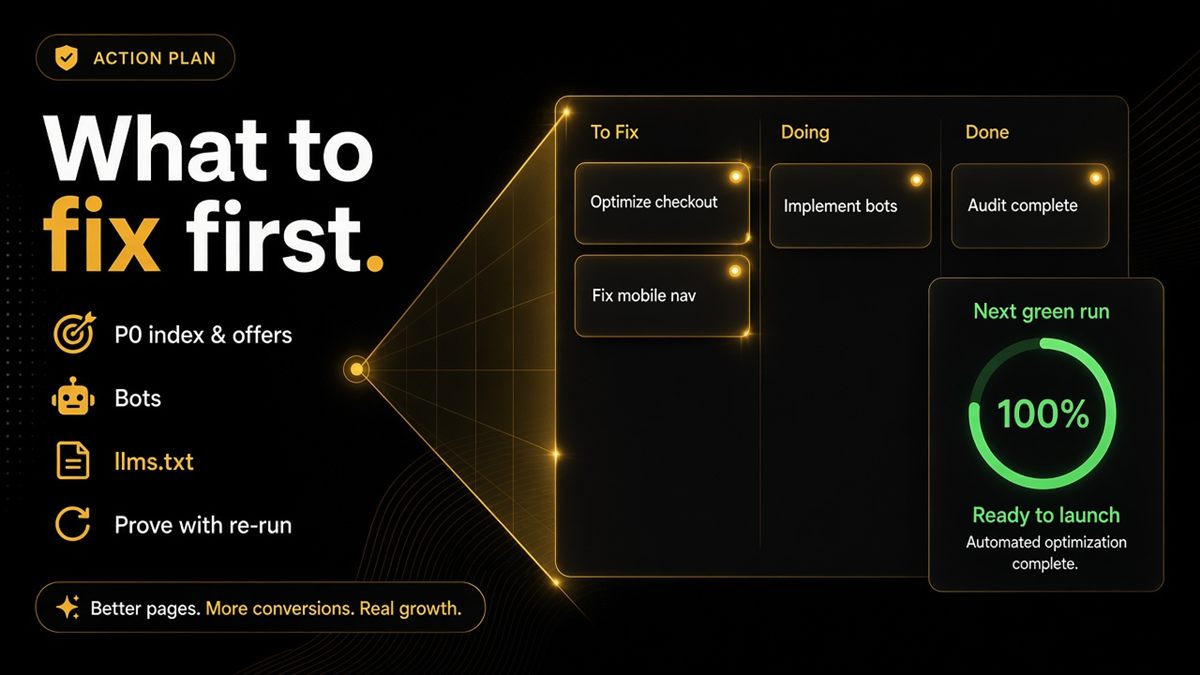
Key takeaways
- Fix anything that stops a bot fetching or understanding the page before you publish new content.
- Work in this order: indexable page, identity and offer schema, AI bot access, canonical and Open Graph polish, llms.txt, prompt QA.
- Batch schema and robots.txt fixes into one theme change so you can re-audit cleanly.
- Re-run the same URLs after the deploy — the next green run is the deliverable, not the report.
- Keep one JSON-LD source of truth per page and disable duplicate SEO apps.
After a Shopify SEO & AI Audit, fix problems in this order: first anything that stops the page being fetched or indexed (noindex, password protection), then missing structured data for that page type (product price, availability, shop identity), then robots.txt rules that block AI bots you meant to allow, then canonical and Open Graph polish, and only then llms.txt and prompt testing. Ship the theme changes as one batch and re-run the same URLs to prove the pass.
What is the post-audit punch list?
The SEO & AI Audit returns a list of pass and fail rows for the exact URL you pasted — homepage, collection, product, blog post or policy page. The punch list is that fail list, sorted by how badly each item hurts discovery. It is not a score to admire. It is a ticket queue.
Each row is written as a merchant outcome ("price missing in markup", "GPTBot blocked", "no llms.txt") rather than a spec reference, so you can hand it to a developer, an SEO app's support desk or your own to-do list without translation.
Why does the order of fixes matter?
Because the fixes depend on each other. Perfect Product JSON-LD on a noindex page is invisible. Unblocking GPTBot on a page whose price markup is wrong helps ChatGPT fetch a wrong answer faster. An llms.txt that points models at pages with broken canonicals sends them to the wrong URL.
Working bottom-up wastes budget. Working top-down means every later fix lands on a base that can actually be read.
How to triage: P0, P1, P2
Sort every failing row into one of three buckets before anyone touches the theme.
| Priority | What it looks like | Why it sits here |
|---|---|---|
| P0 — blocker | noindex on a public page, password still on, missing product price or availability in markup, an AI bot blocked that you intended to allow | The page cannot be fetched or cannot be understood |
| P1 — important | Missing llms.txt, Organization or WebSite markup absent on the homepage, canonical pointing at the wrong page type | Readable, but models may pick the wrong facts or URL |
| P2 — polish | Extra or duplicate FAQ markup, generic og:image, minor title mismatches | Cosmetic; fix when convenient |
If the same row fails on both the homepage and your best-selling product, it is almost certainly a theme-level problem rather than a one-off, and that raises its priority.
How to work through the fixes on Shopify
1. Clear the blockers
Check Online Store → Preferences for password protection and remove it if the store is meant to be live. Search the theme and any SEO app settings for noindex rules on products or collections. For a fuller walkthrough see noindex is killing your Shopify AI discovery.
2. Fix structured data for the page type
Products need name, image, price, currency and availability in the Product schema, matching what the theme displays. The homepage needs Organization or WebSite markup with the shop's real name. Use the Shopify JSON-LD checklist for merchants as the spec for the ticket.
3. Decide and set bot access
Open yourstore.com/robots.txt. If GPTBot, ClaudeBot, PerplexityBot or Google-Extended are disallowed and nobody chose that, edit the robots.txt.liquid template (Online Store → Themes → Edit code) or the SEO app that generated the rule. Write the decision down so the next developer does not undo it.
4. Polish canonicals and previews
Product canonicals must point at the product URL, never the homepage. Each key template needs a unique og:title and an absolute HTTPS og:image that loads.
5. Add llms.txt and run prompt QA
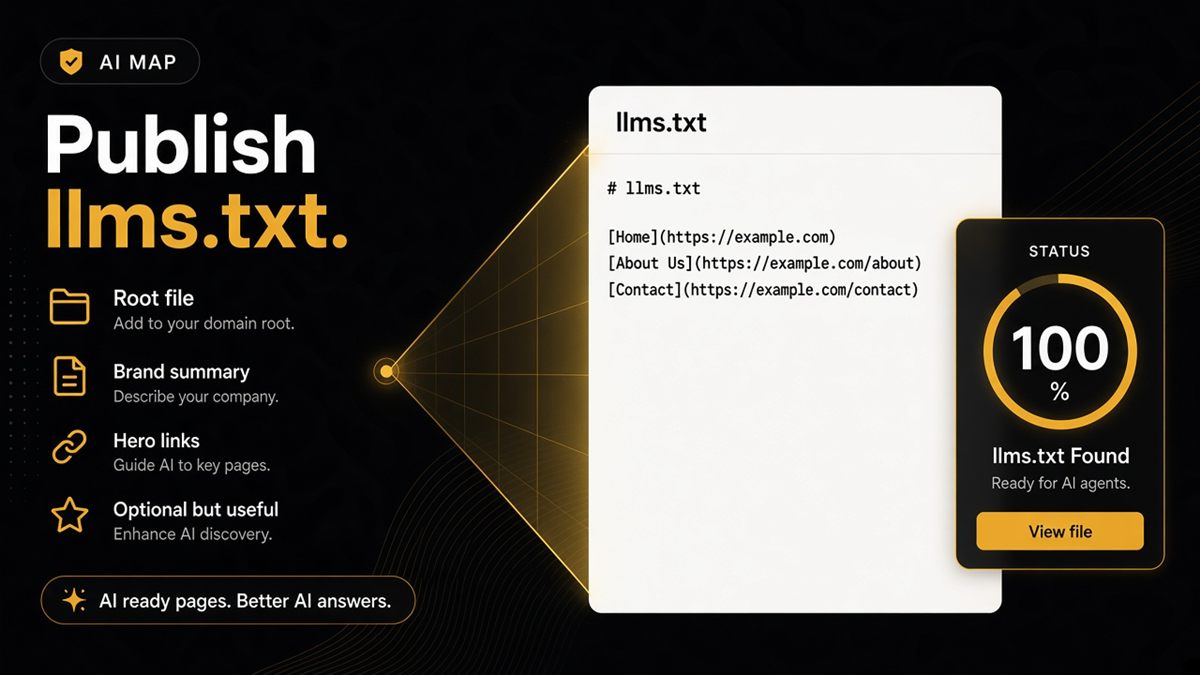
Once the page is readable, publish an llms.txt that highlights hero collections and policies, then ask ChatGPT and Perplexity the questions your shoppers ask and compare the answers to reality.
A worked example
Say your audit on a £45 candle product page fails four rows: "price missing in markup", "GPTBot blocked", "no llms.txt" and "duplicate FAQ markup". Two SEO apps are installed.
The right week looks like this. Monday: disable the second SEO app and confirm one Product JSON-LD block remains with the £45 price. Tuesday: edit robots.txt.liquid to remove the GPTBot Disallow, because you sell a product people ask assistants about. Wednesday: deploy both in one theme change and re-run the audit; expect two rows to flip green. Next sprint: write llms.txt. Leave the FAQ duplication until everything else is done.
Common mistakes after an audit
- Installing a third SEO app to "fix" what two apps already broke.
- Writing new blog content before the product pages are readable.
- Fixing robots.txt while the page is still noindex, then wondering why nothing changed.
- Editing schema by hand in the live theme without a duplicate theme to test on.
- Treating the on-page result as a certificate. It only proves readability on the day you ran it.
How to prove the fix worked
- Hard-refresh the live URL and view the page source to confirm the new markup shipped.
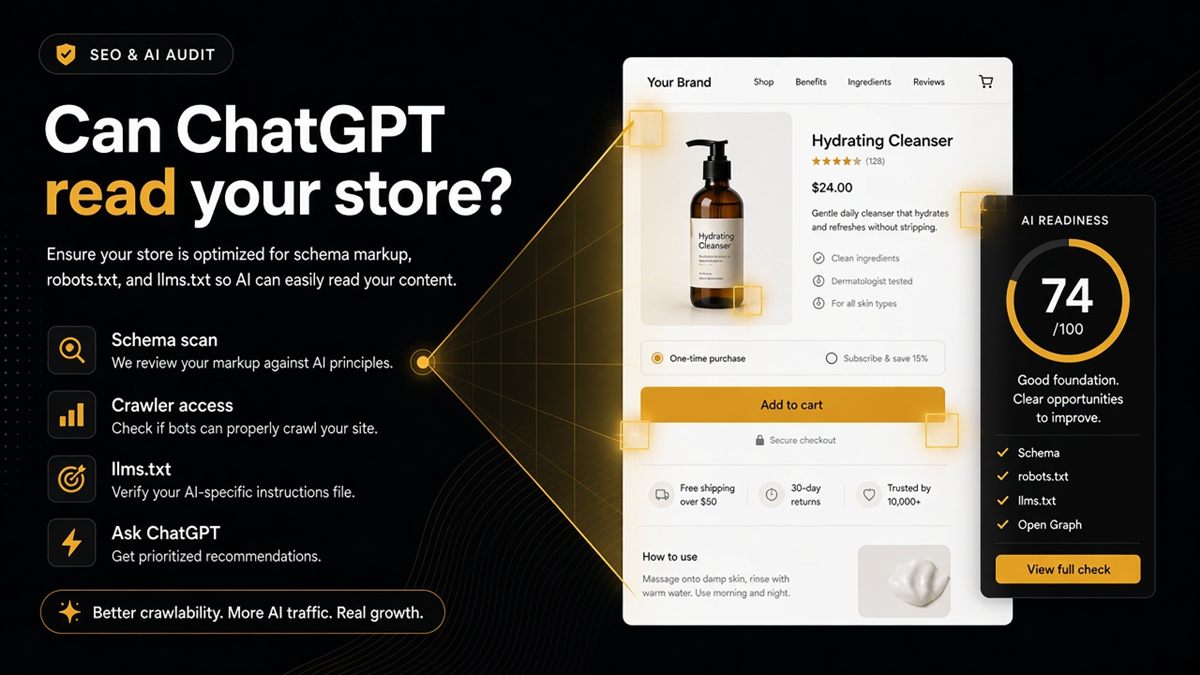
- Paste the exact same URLs into the ChatGPT SEO check for Shopify stores and confirm the failing rows now pass.
- Screenshot the before and after for whoever signed off the work.
- Ask ChatGPT about the product URL and check that the price, availability and shipping terms it quotes match the page.
- Re-run after any theme update, app install or Markets change, because those are the changes that reintroduce the same bugs.
When not to start fixing yet
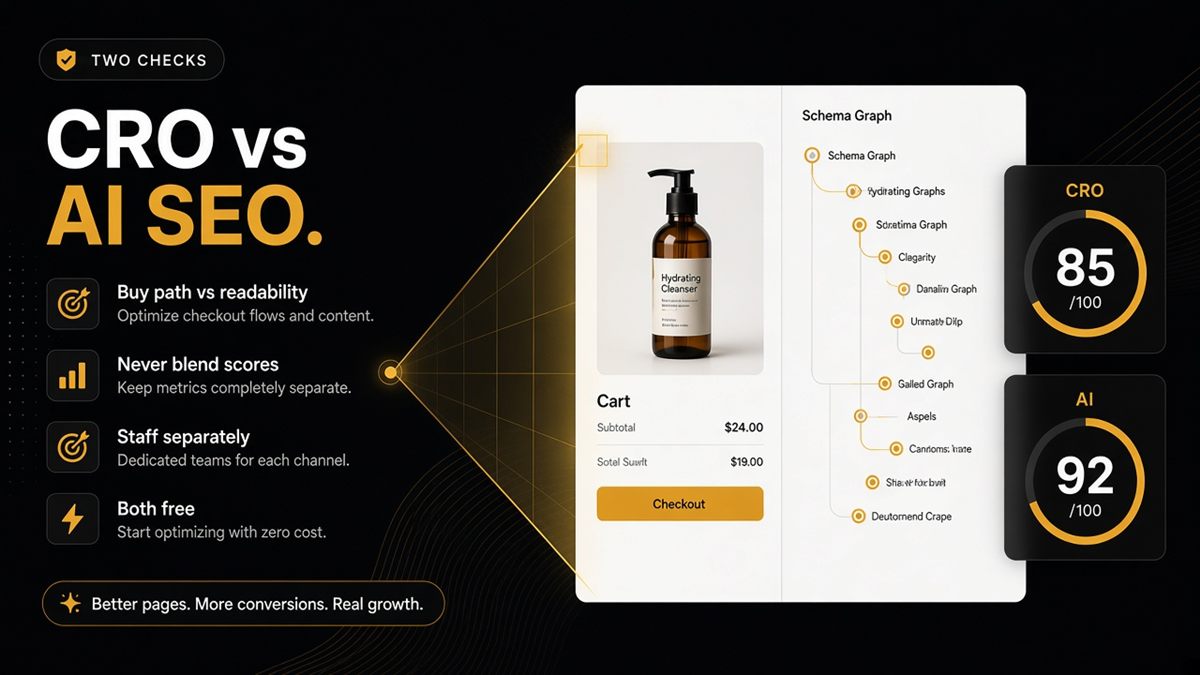
Do not touch the theme if the store is mid-migration, mid-redesign or about to switch SEO apps. Finish the move, then audit the new templates once. Equally, if paid ads are already spending on a product page that leaks orders, run the CRO Audit on that page in parallel — a readable page that cannot sell is not the goal either.
The audit is not the work. The next green run is.
Frequently asked questions
What should I fix first after a Shopify SEO & AI Audit?
Fix indexability first. A page marked noindex or still behind a password cannot be used by Google or AI assistants no matter how good the schema is. Then fix missing product price or shop identity in structured data, then unblock the AI bots you meant to allow.
We only failed the llms.txt check. Should we panic?
No. llms.txt is a priority-one item, not a blocker. Schedule it for the next sprint, and fix schema and robots.txt first if those failed too.
Why do multiple SEO apps fight each other on Shopify?
Each app injects its own JSON-LD and meta tags, so the page ends up with two Product blocks or two canonicals that disagree. Disable the duplicates and keep one source of truth for structured data.
Do we need a developer to act on the audit?
Often for schema and robots.txt edits, because those live in theme code. Merchants can still own the llms.txt content, the product data itself and the prompt tests.
When should we run the CRO Audit after the SEO & AI Audit?
After the page is findable, or in parallel if paid ads are already sending traffic to it. Discovery and conversion are separate jobs with separate punch lists, so keep the two reports apart.
How do I know the audit fixes actually worked?
Paste the same URLs into the SEO & AI Audit after the deploy and confirm the failing rows now pass. Then ask ChatGPT about the page and compare its answer to your real price and policies.